
BetterDocs gives you seamless integration with Elementor. You can now design your Single Doc in Elementor without any coding by using the Elementor Theme Builder. Once you design a template for your Single Doc page, you can save it and then reuse it again for each of your single documentation pages.
Note: The Elementor Theme Builder is a feature that is only available with Elementor Pro. So, in order to configure Single Doc in Elementor, you must have the Pro version of Elementor installed.
Follow these step-by-step instructions to find out how you can use BetterDocs to design your Single Doc in Elementor.
Step 1: Create New Single Doc In Elementor Theme Builder #
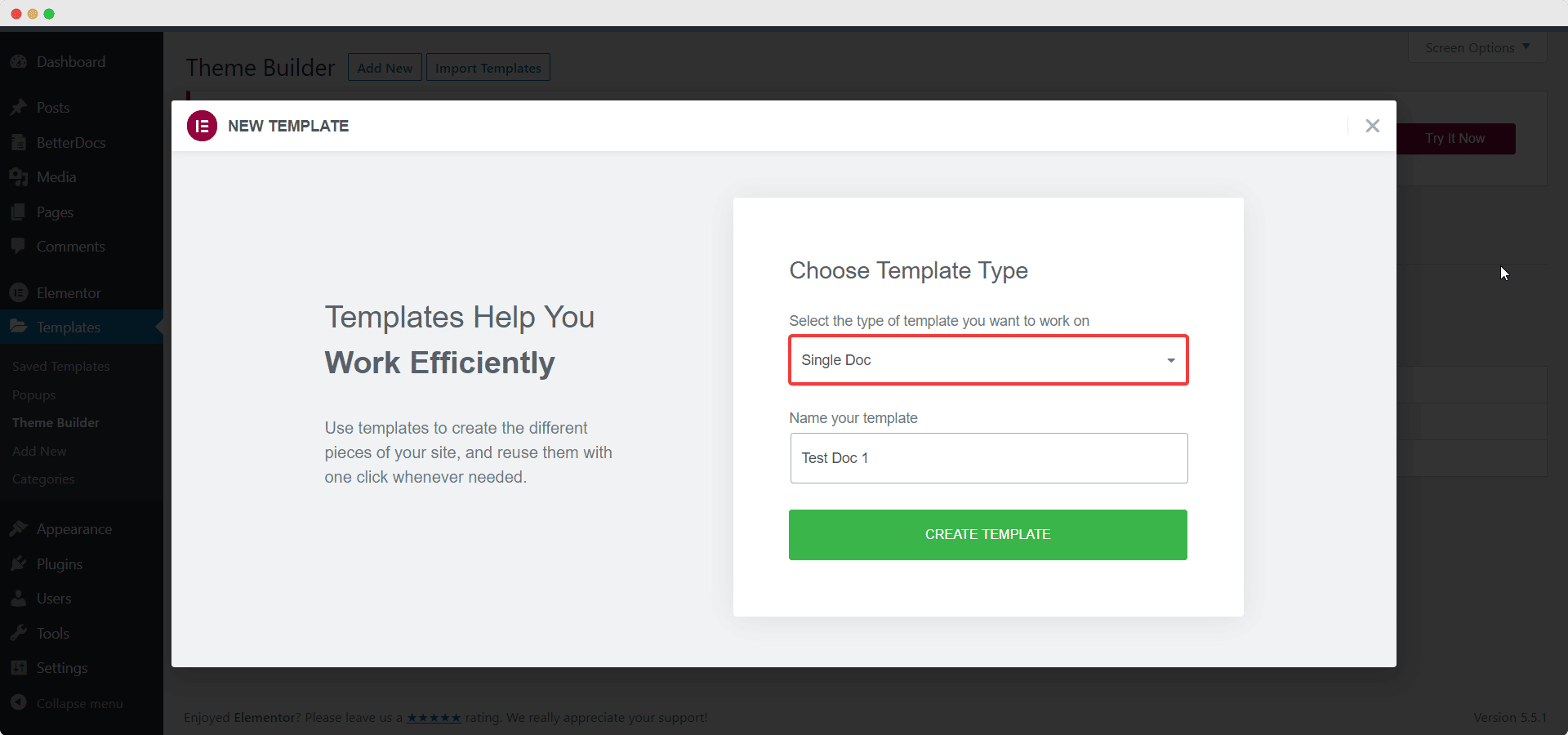
Navigate to WordPress Dashboard → Templates→ Theme Builder from your WordPress dashboard. Click on the ‘Add New’ button and select ‘Single Doc’ as your template type. When you are done click on ‘Create Template’.
A pop-up window will appear showcasing BetterDocs premade ready blocks for Elementor. You can use these ready blocks to instantly create your single doc page. Or you can customize your single doc page from scratch by configuring different elements as shown in the next step.
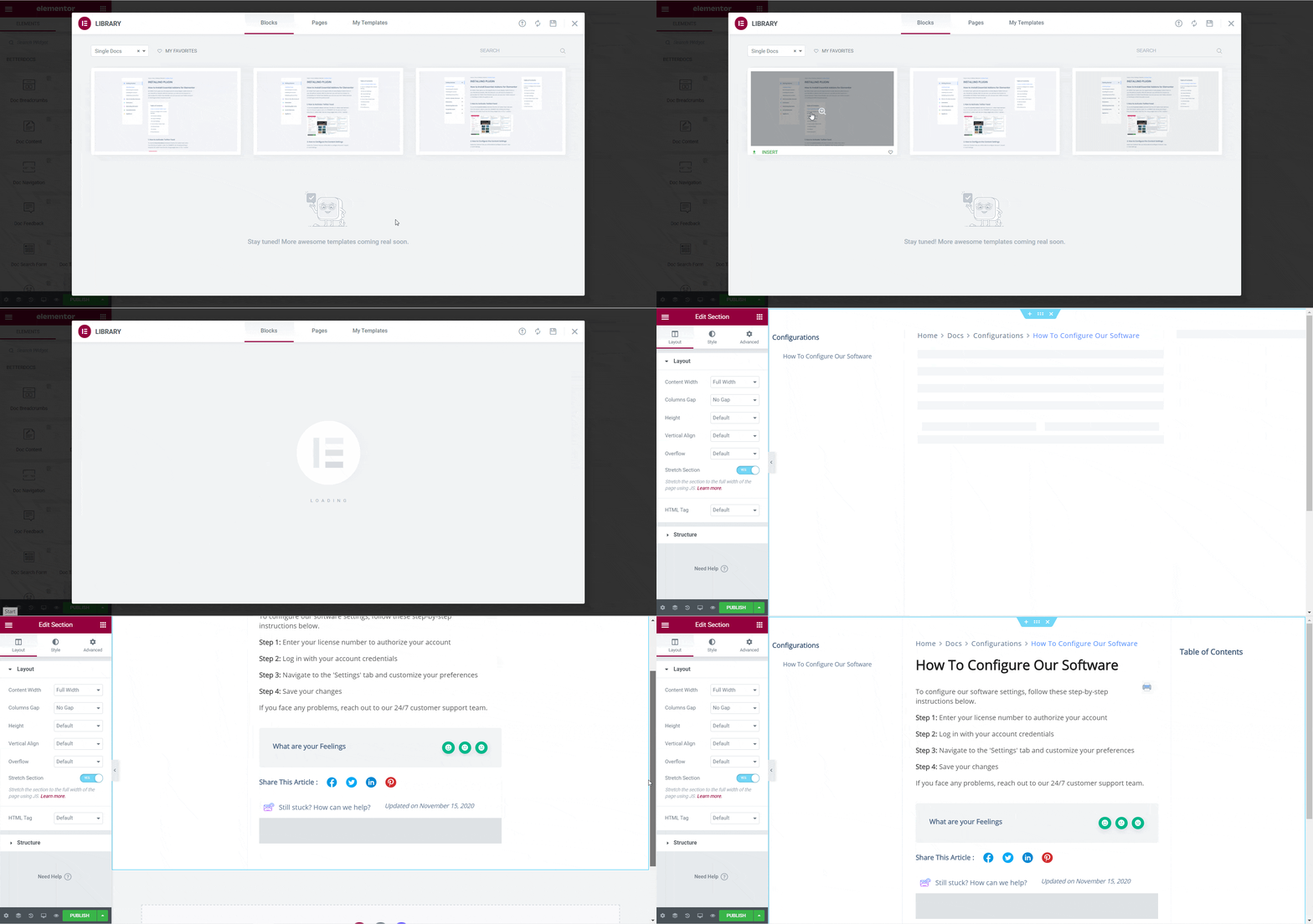
Step 2: Customize Single Doc In Elementor #
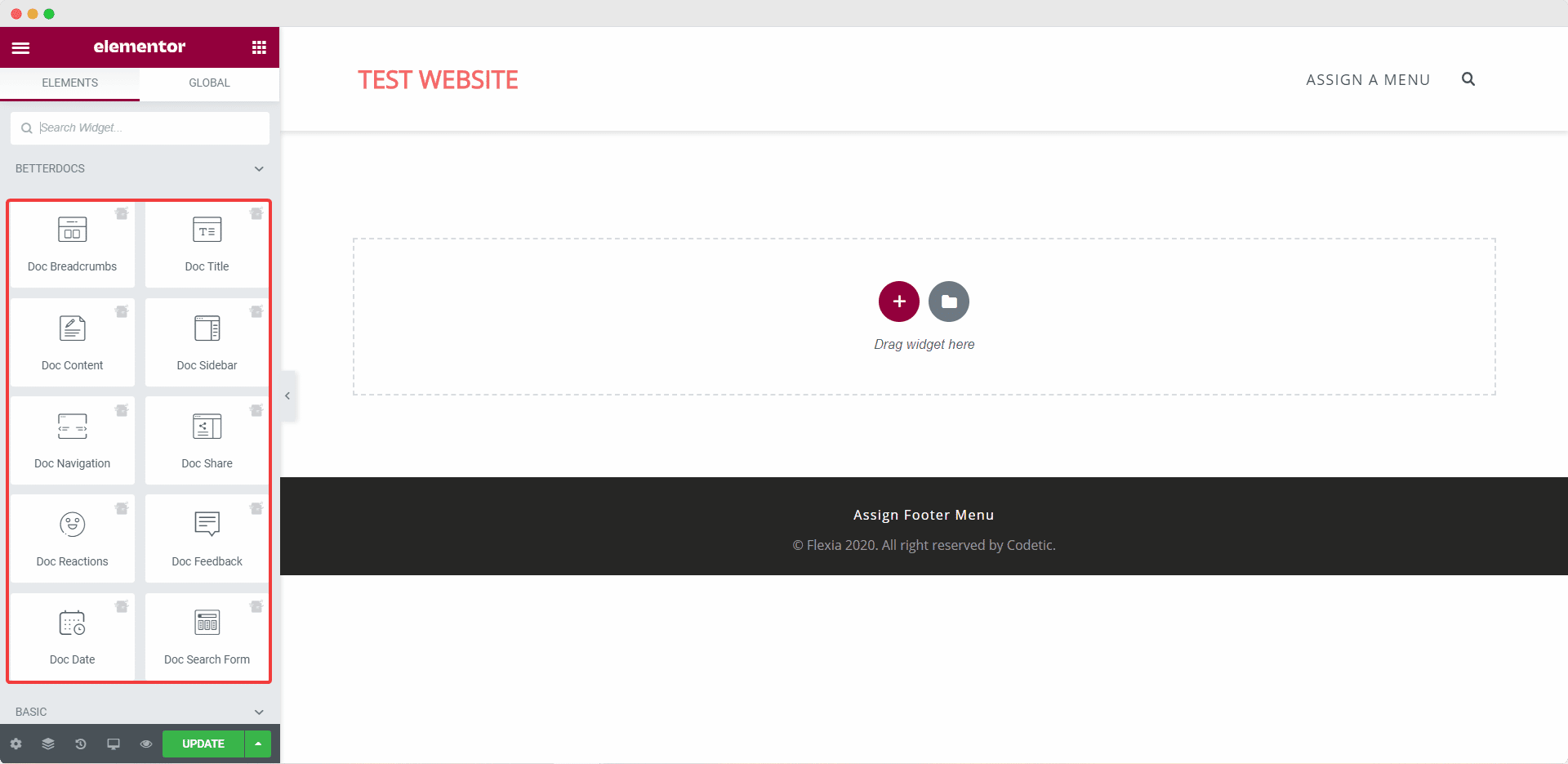
From the ‘ELEMENTS’ tab in Elementor Editor, you should see 10 new BetterDocs elements to design your Single Doc page template. You can drag and drop these elements anywhere on your page to use them.
Doc Search Form #
The Doc Search Form element lets you add a live search bar to your Single Doc page. To use this element, simply drag and drop it into any section of your page.
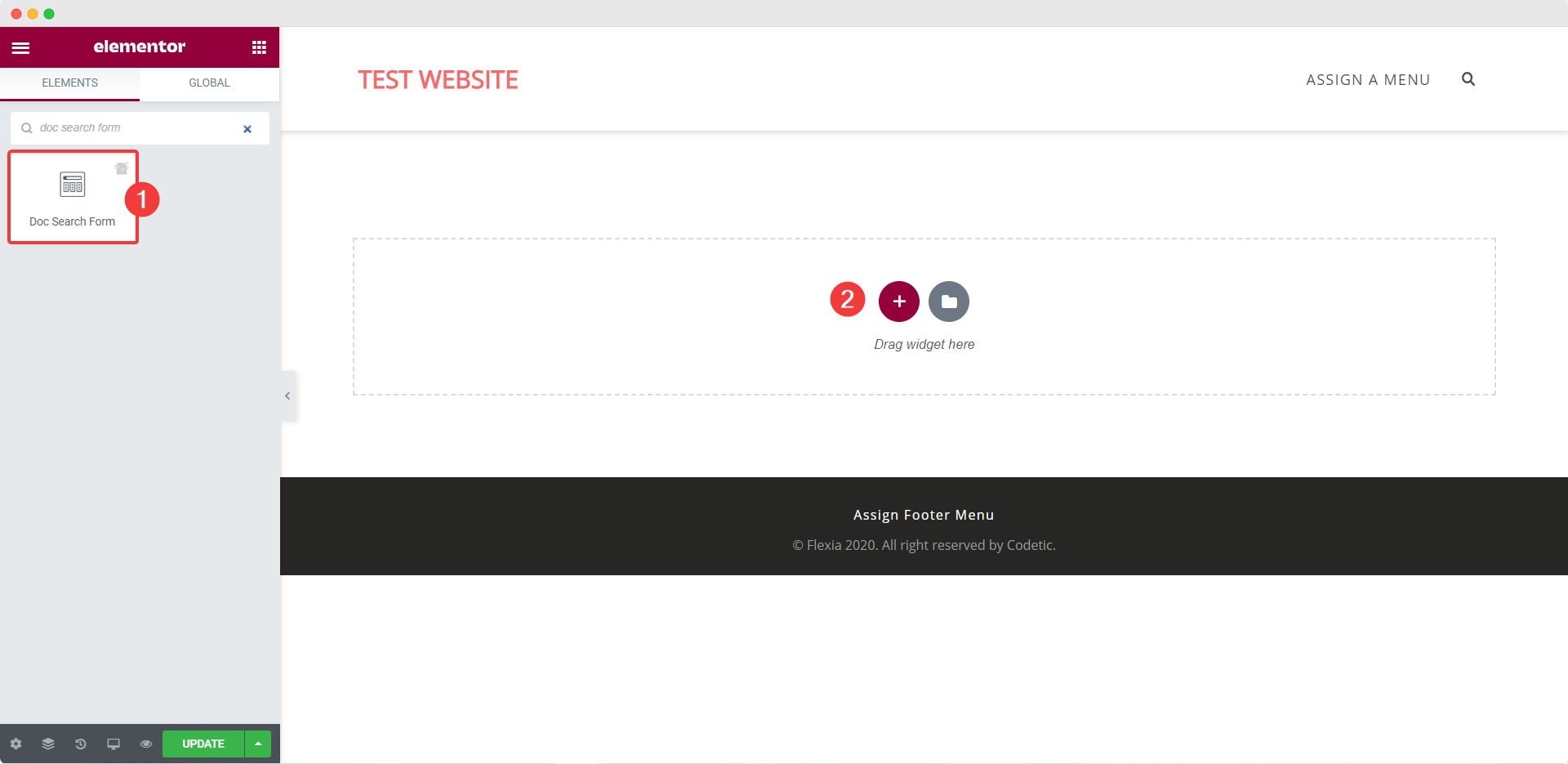
The element will appear on your page by default as shown below.
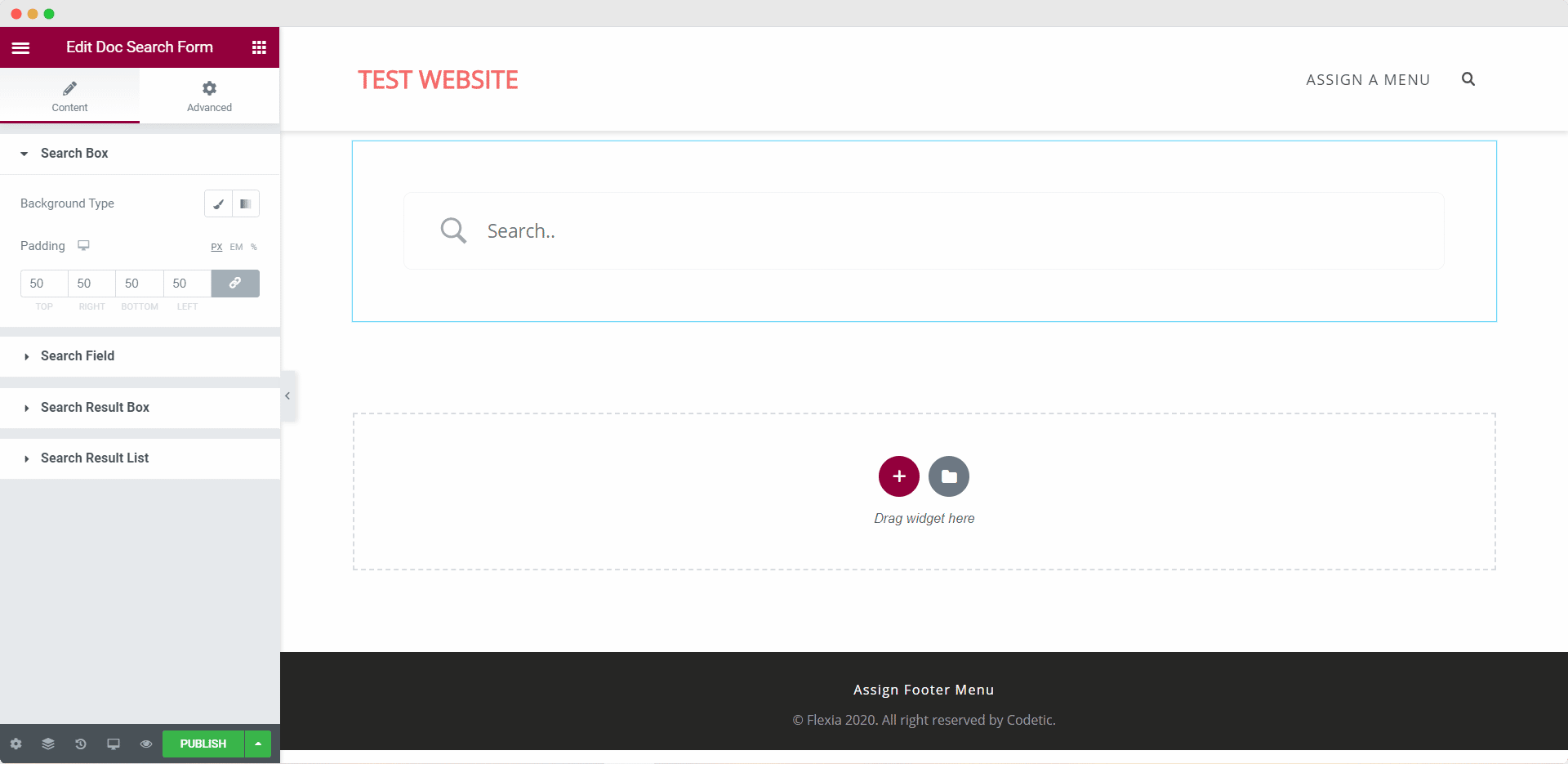
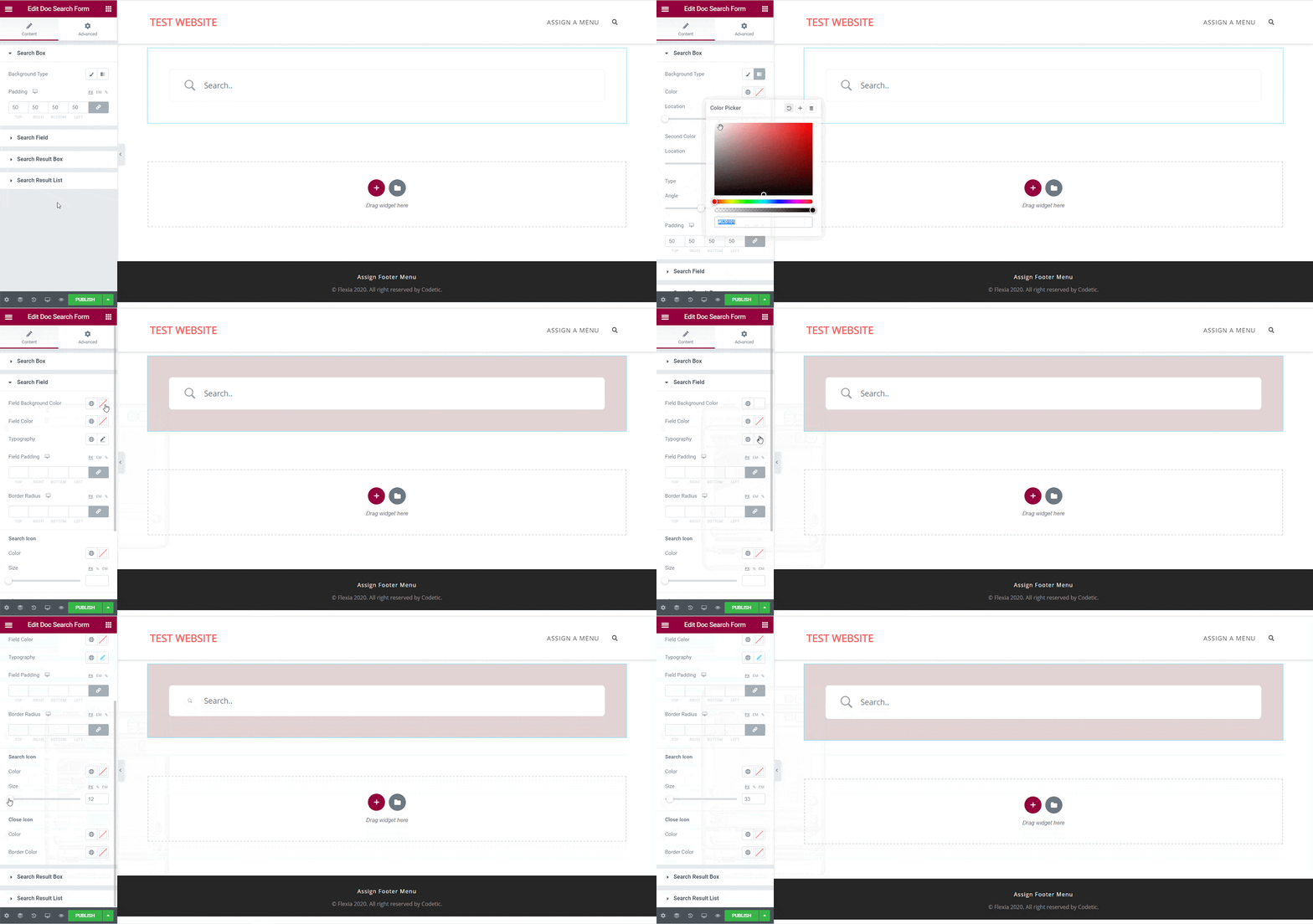
From the ‘Content’ tab, you can customize your Doc Search Form. Under the ‘Search Box’ section you will see options for changing the background type and color. You can use images, solid colors, or gradient colors for your background.
Similarly, under the ‘Search Field’ section, you have the option to change the field background color, field color, typography, padding, icons and much more.
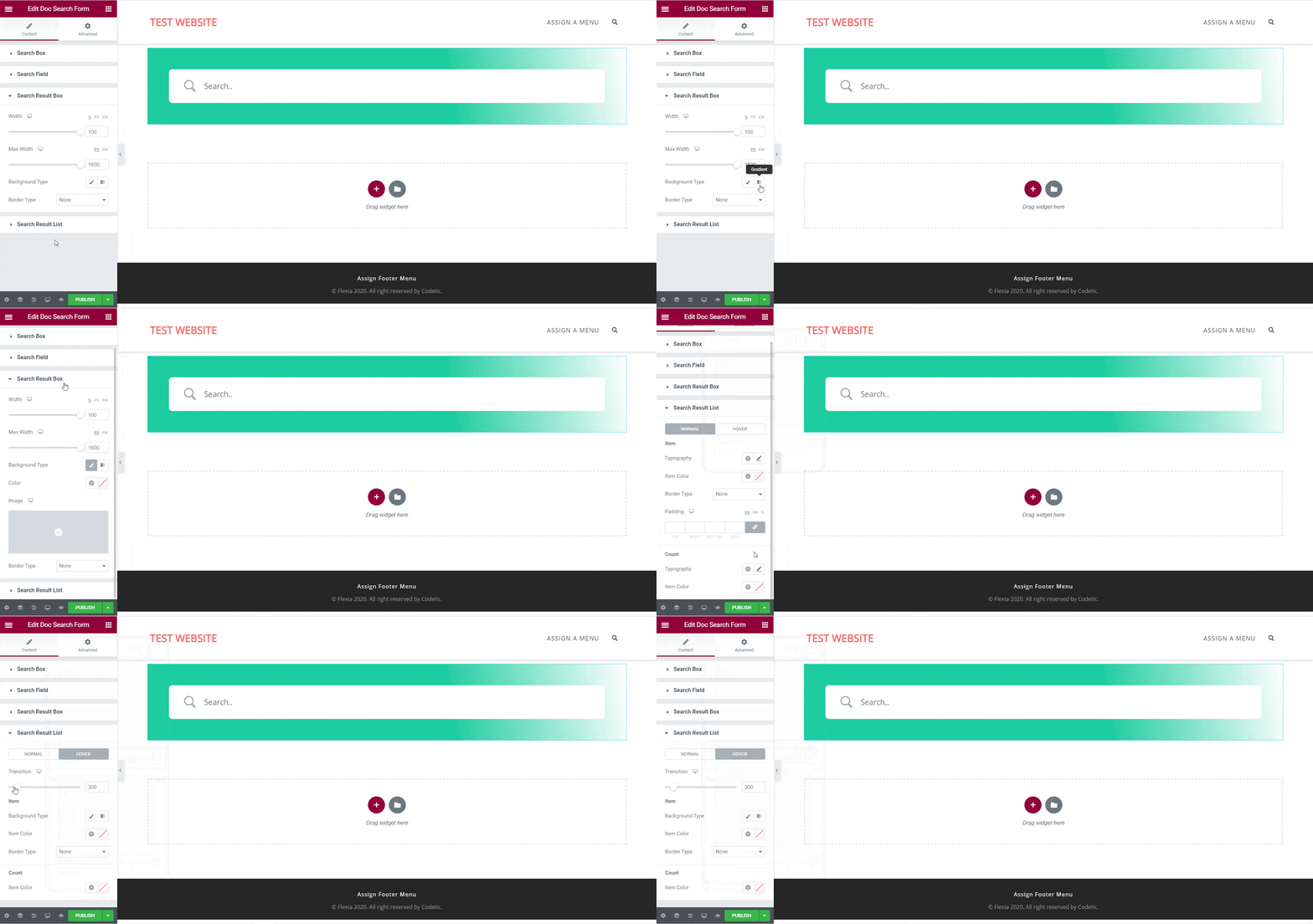
You can also change the width, background type and border for your results box from under the ‘Search Result Box’ section. You can also change the typography and colors for your search result items from under the ‘Search Result List’ section.
Doc Title #
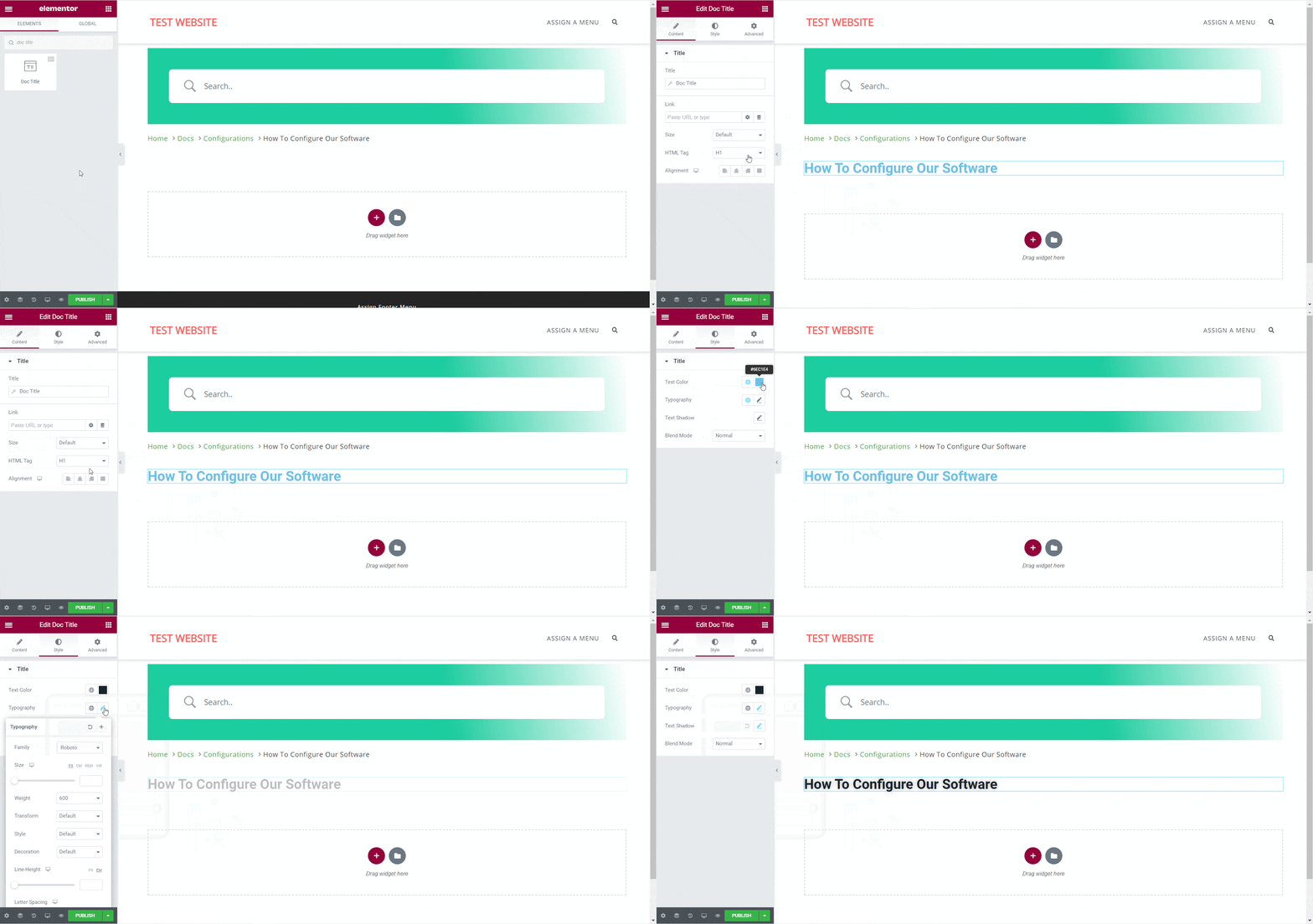
The Doc Title element dynamically adds the title of your Single Doc in Elementor. From the ‘Content’ tab, you can change the heading tags, alignment and even add links. From the ‘Style’ tab you can change the title color, typography, blend mode and even add text-shadow.
Doc Content #
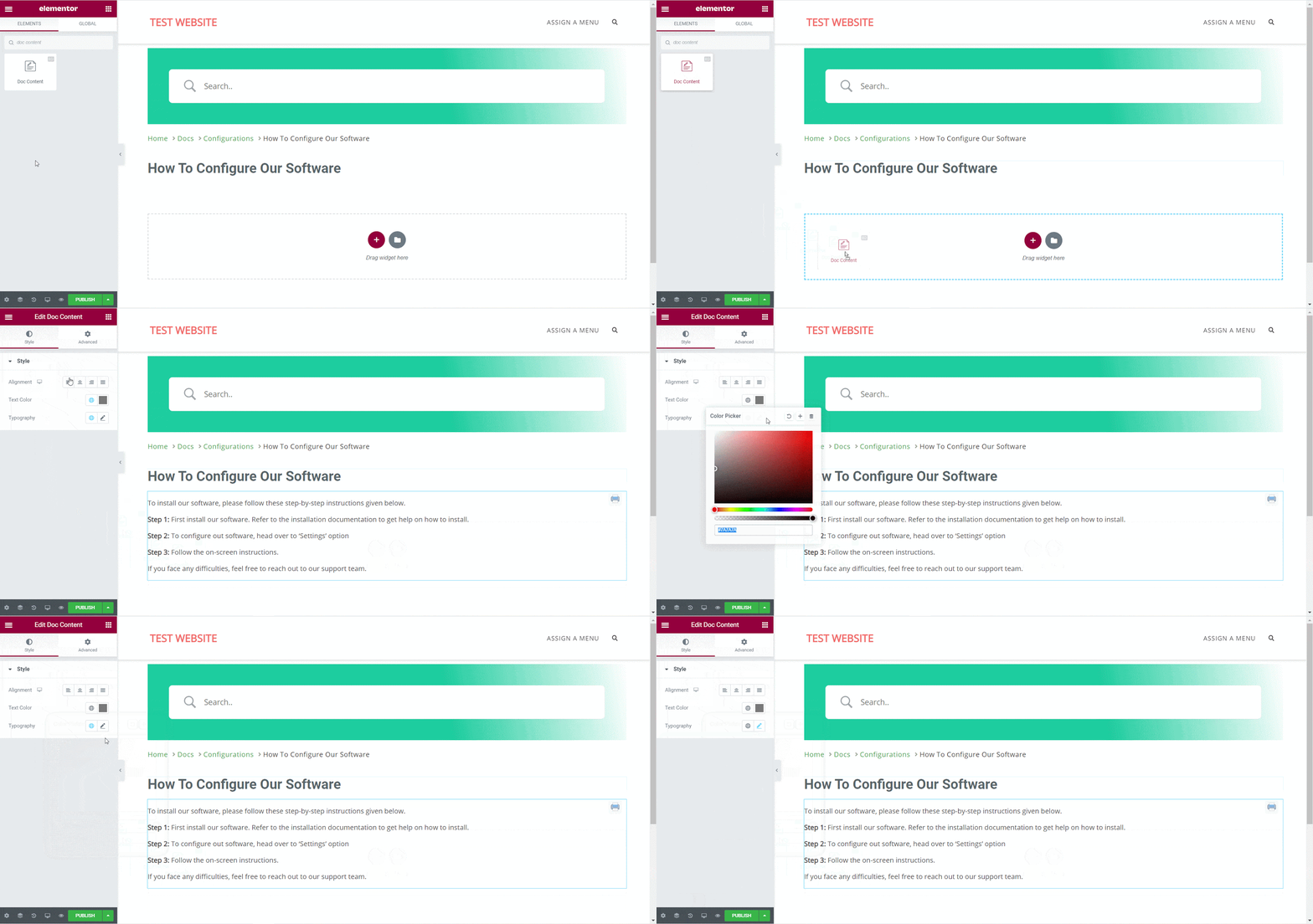
You can drag and drop the Doc Content element anywhere in your Single Doc page. The content of your documentation will be automatically added. You can then change the alignment, text color and typography from under the ‘Style’ tab as shown below.
Doc Table Of Contents #
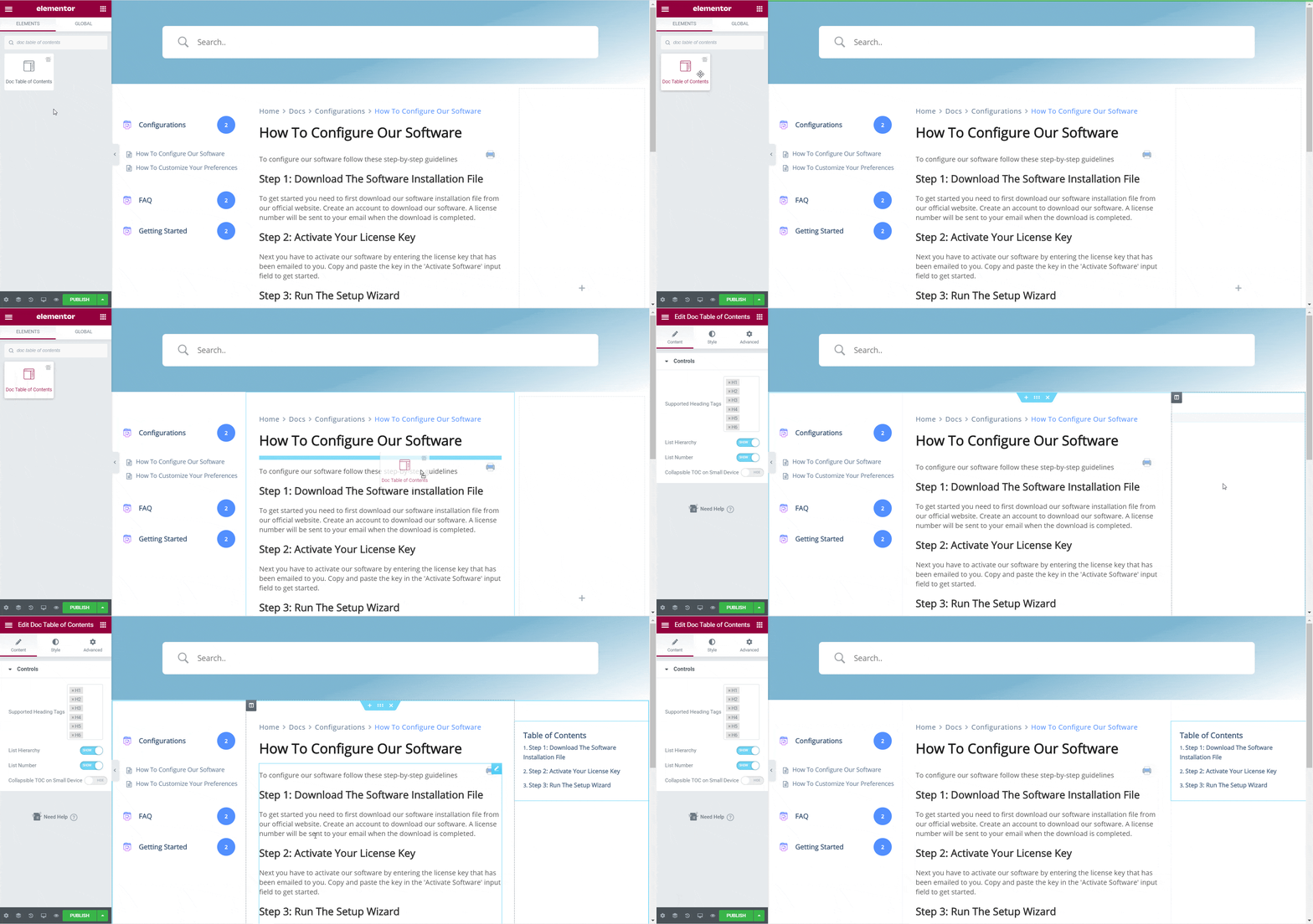
The Doc Table Of Contents element gives you the flexibility to add a table of contents anywhere in your single doc page. You can configure the supported heading tags, list hierarchy and number and more from the ‘Content’ tab. From the ‘Style’ tab you can change the color, typography, alignment, margin and padding for your Doc Table Of Contents.
For more information, check out this detailed guide on how to configure BetterDocs Table Of Contents In Elementor.
Doc Date #
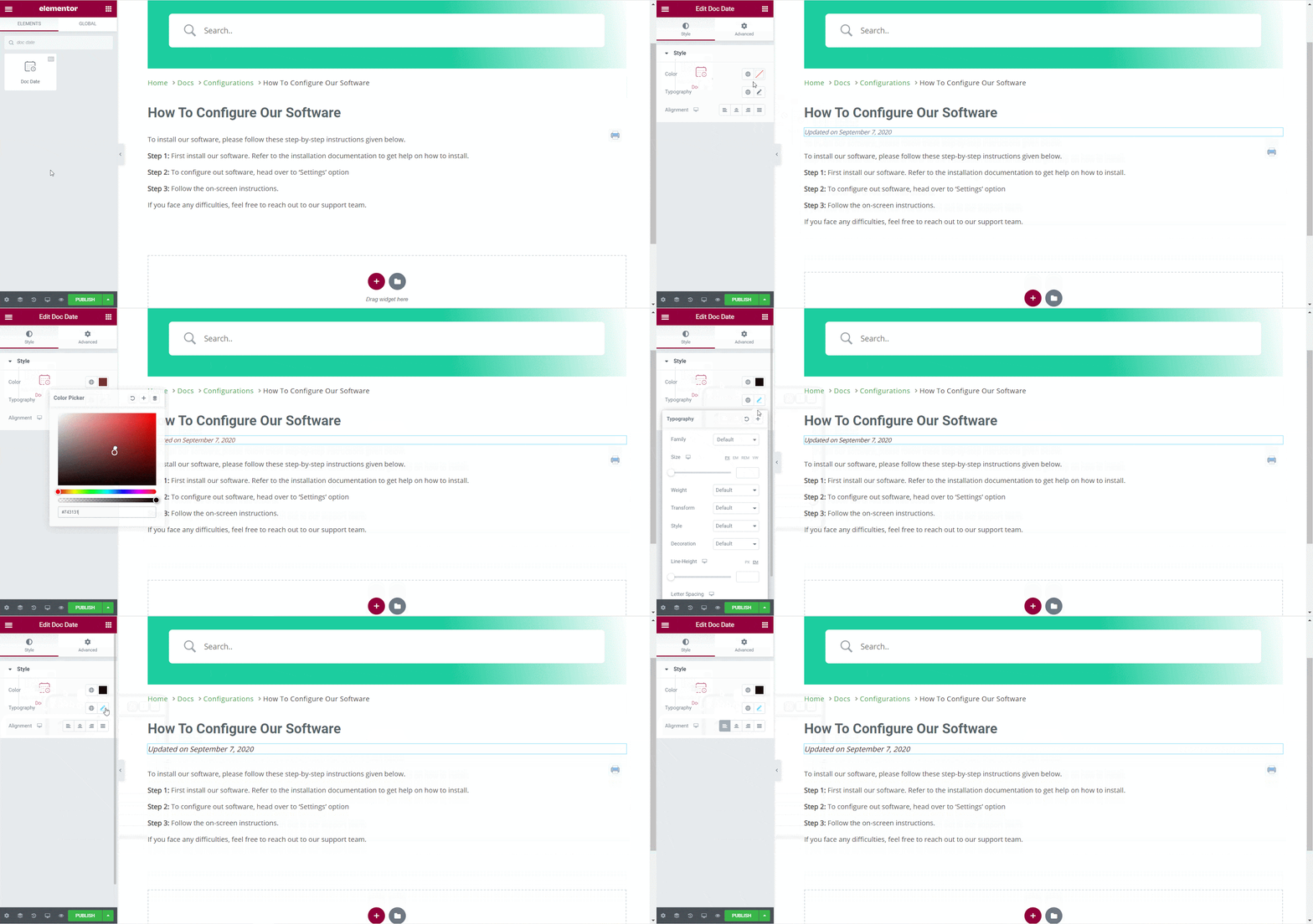
The Doc Date element lets you automatically display the date when your documentation has been updated. You can change the color, alignment and typography of the date from under the ‘Style’ tab.
Doc Sidebar #
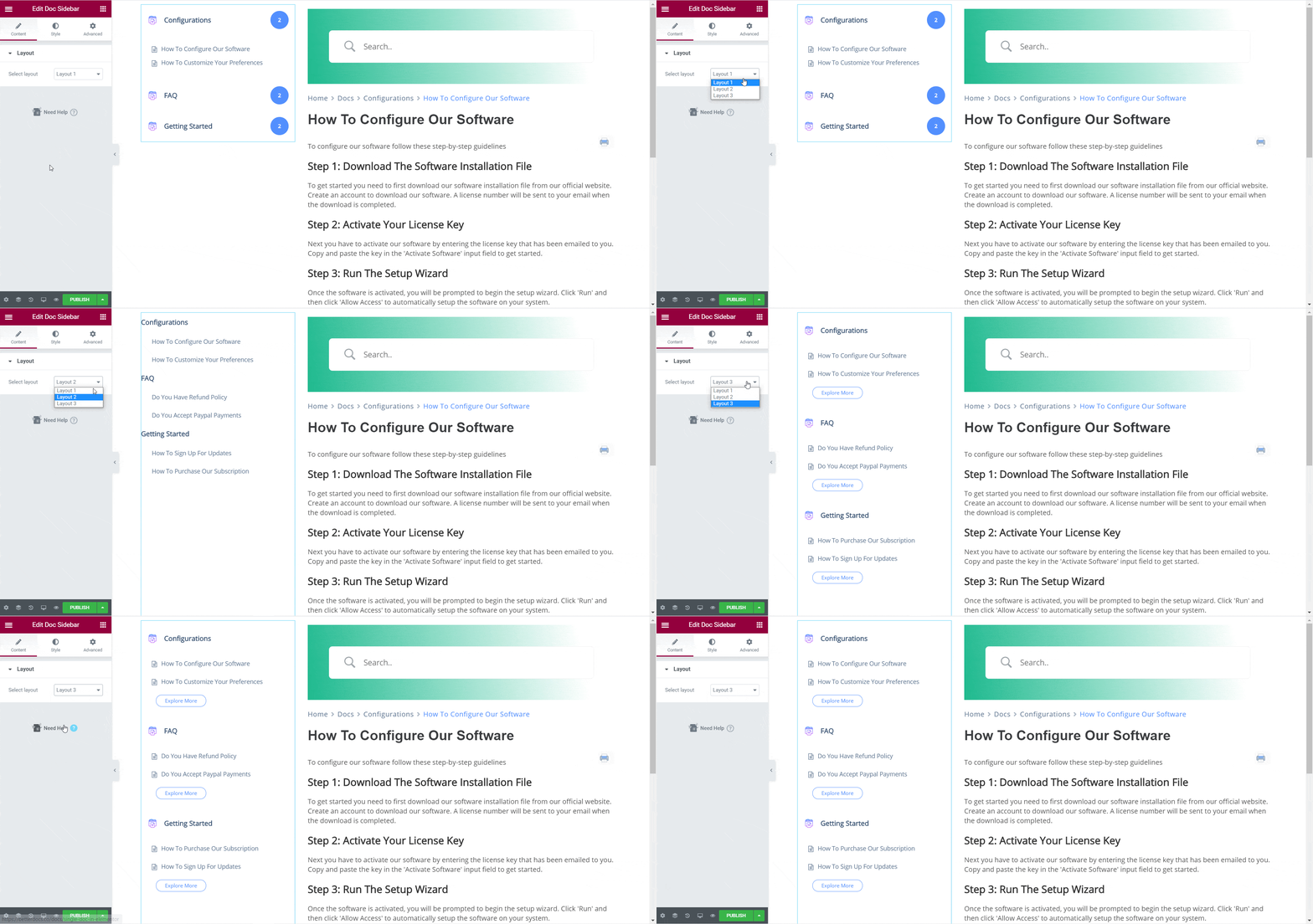
The Doc Sidebar element lets you create a sidebar for your Single Doc in Elementor which displays all the other documentation articles and categories that you have created.
From the ‘Content’ tab, you can choose the layout for your Doc Sidebar. Currently there are three layouts available, each with its own distinct style. The first one is available for BetterDocs free, but you will need to have BetterDocs PRO to use Layout 2 and Layout 3.
Under the ‘Style’ tab, you will see several options. From the ‘Box’ section you can change the spacing and padding of your sidebar box. You can also change the background type, color, and borders for the Header and the Body of your Doc Sidebar.
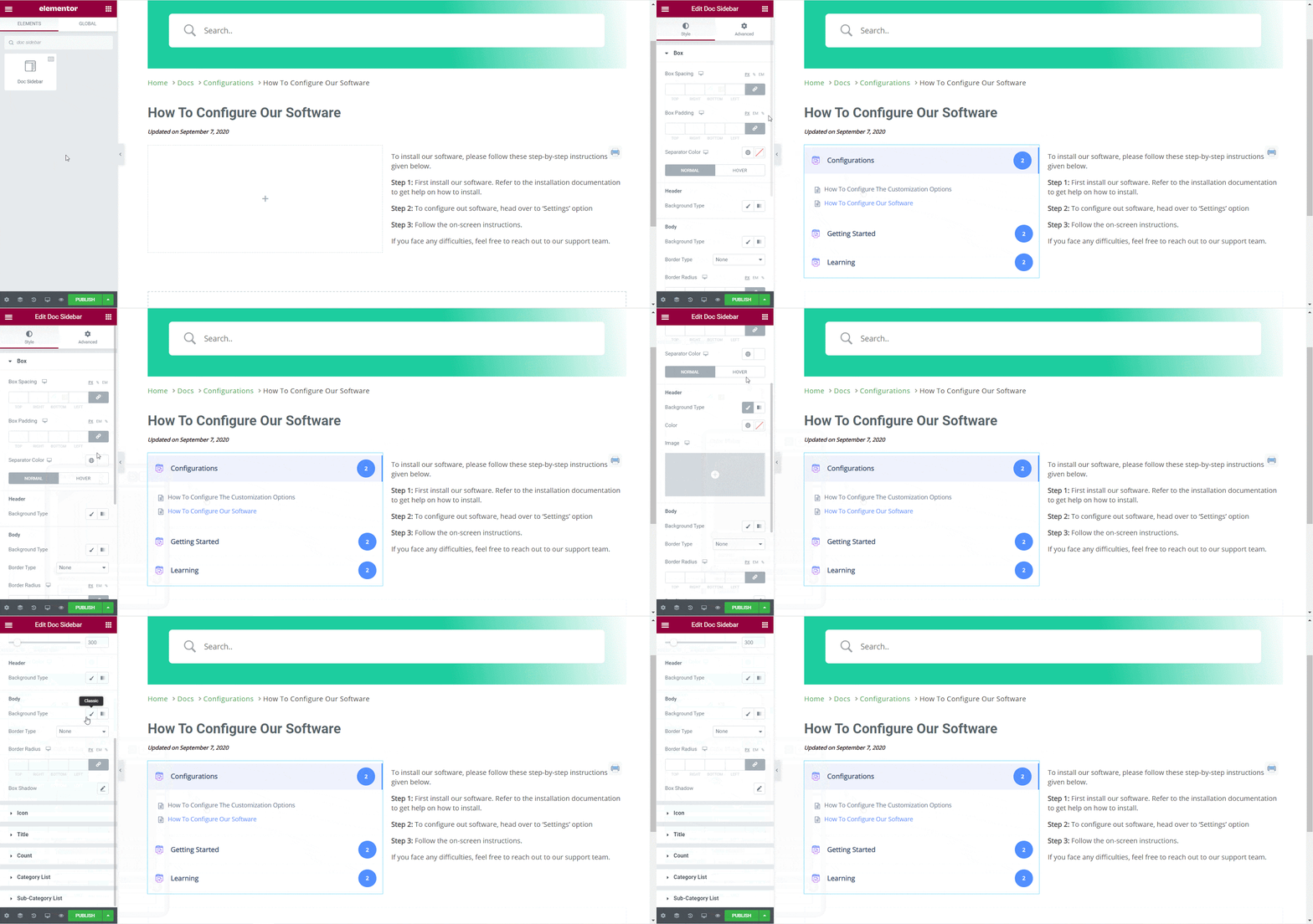
From the ‘Icon’ section, you can change the size of the area where you want your icons. You can also change the size of the icons themselves, change their background color, background type, margin and padding.
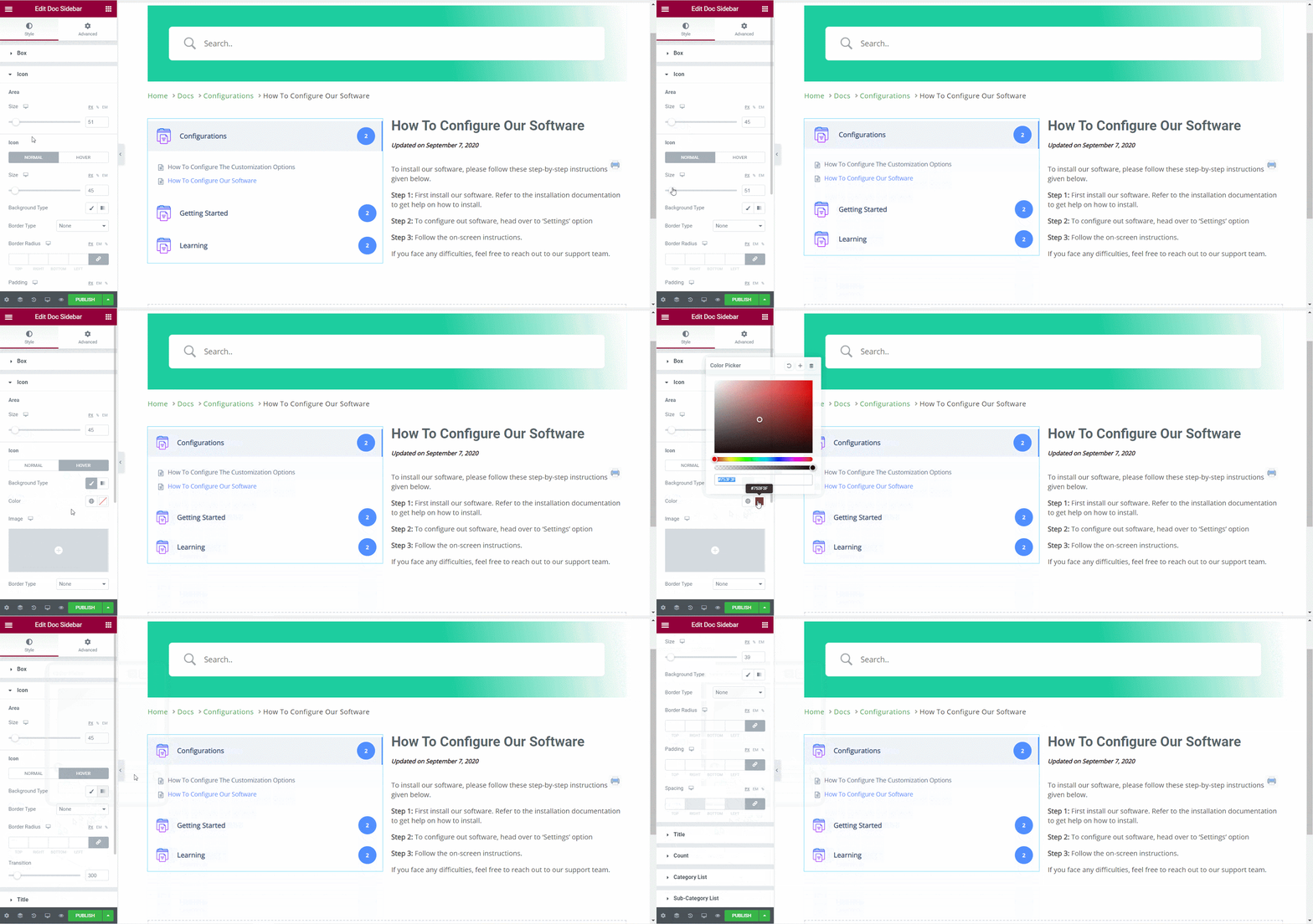
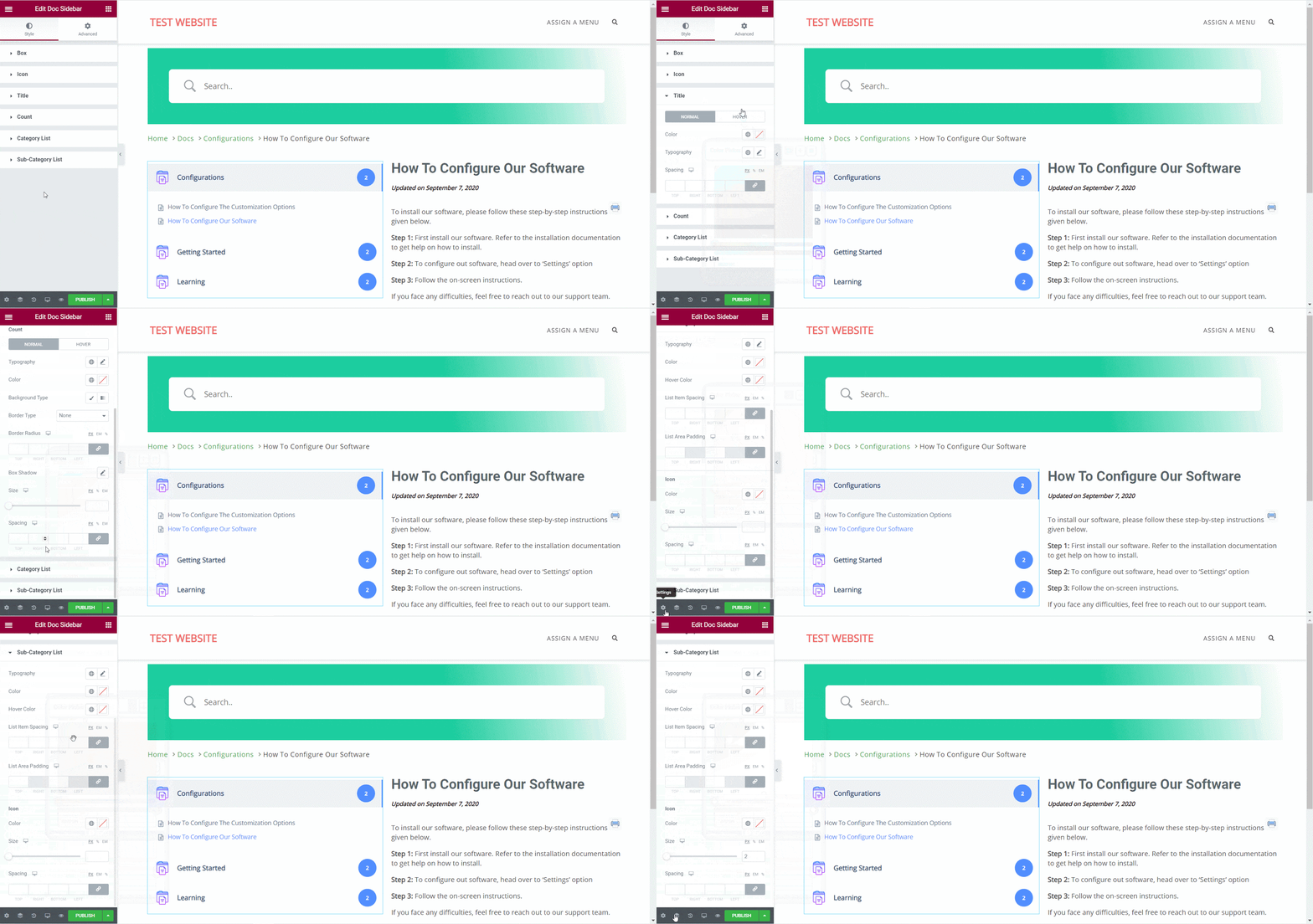
Besides this, you can also change the typography and color for the titles in your Doc Sidebar, customize the count numbers, category list, and sub-category list by playing around with the options under the ‘Style’ tab.
Doc Reactions #
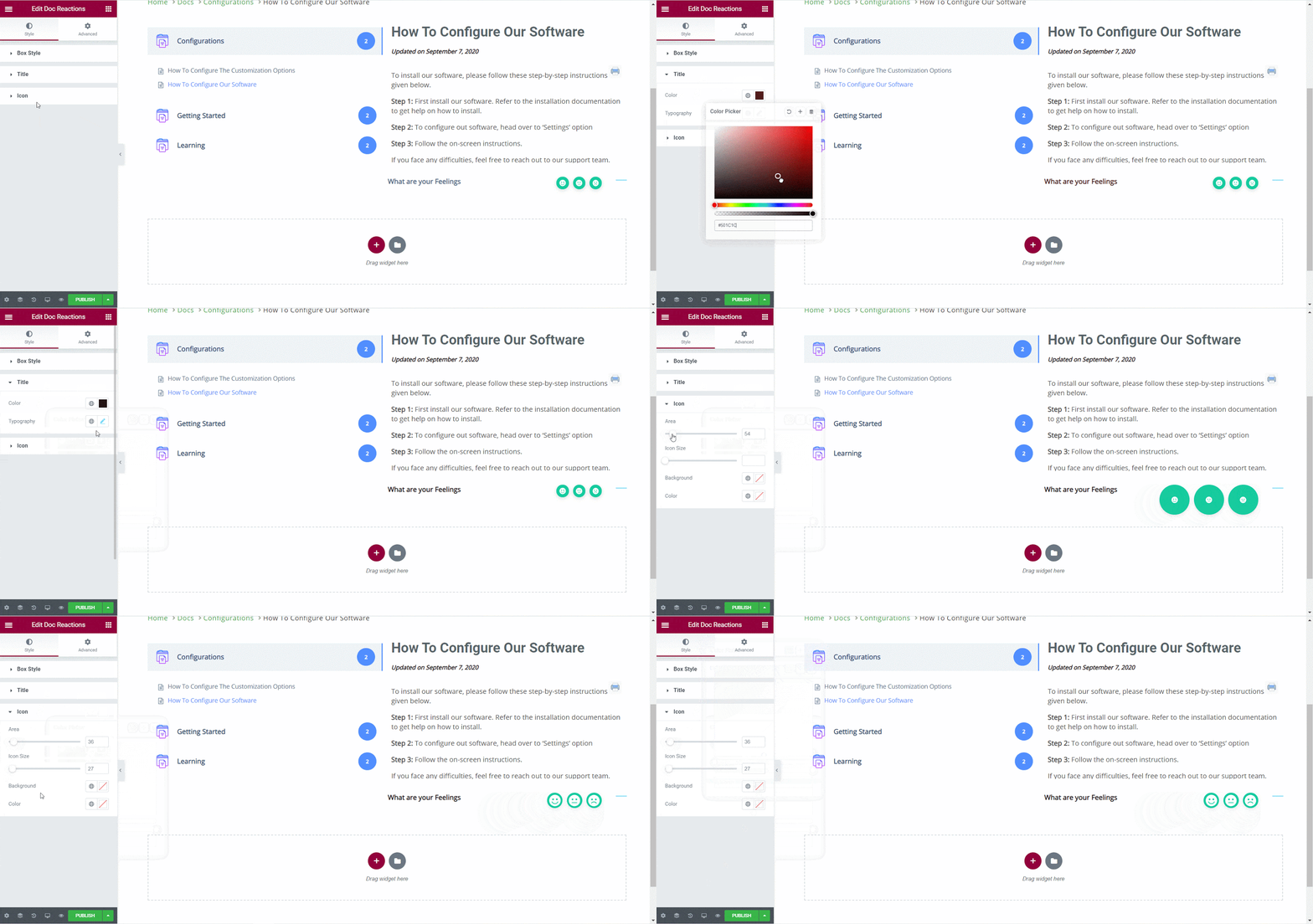
With BetterDocs Pro, you can find out how useful your documentation is to site visitors with the Doc Reactions element. Under the ‘Style’ tab, there are several options with which you can customize this element. From the ‘Box’ section, you can change the width and height, background type and colors, spacing and padding, and even add a box shadow.
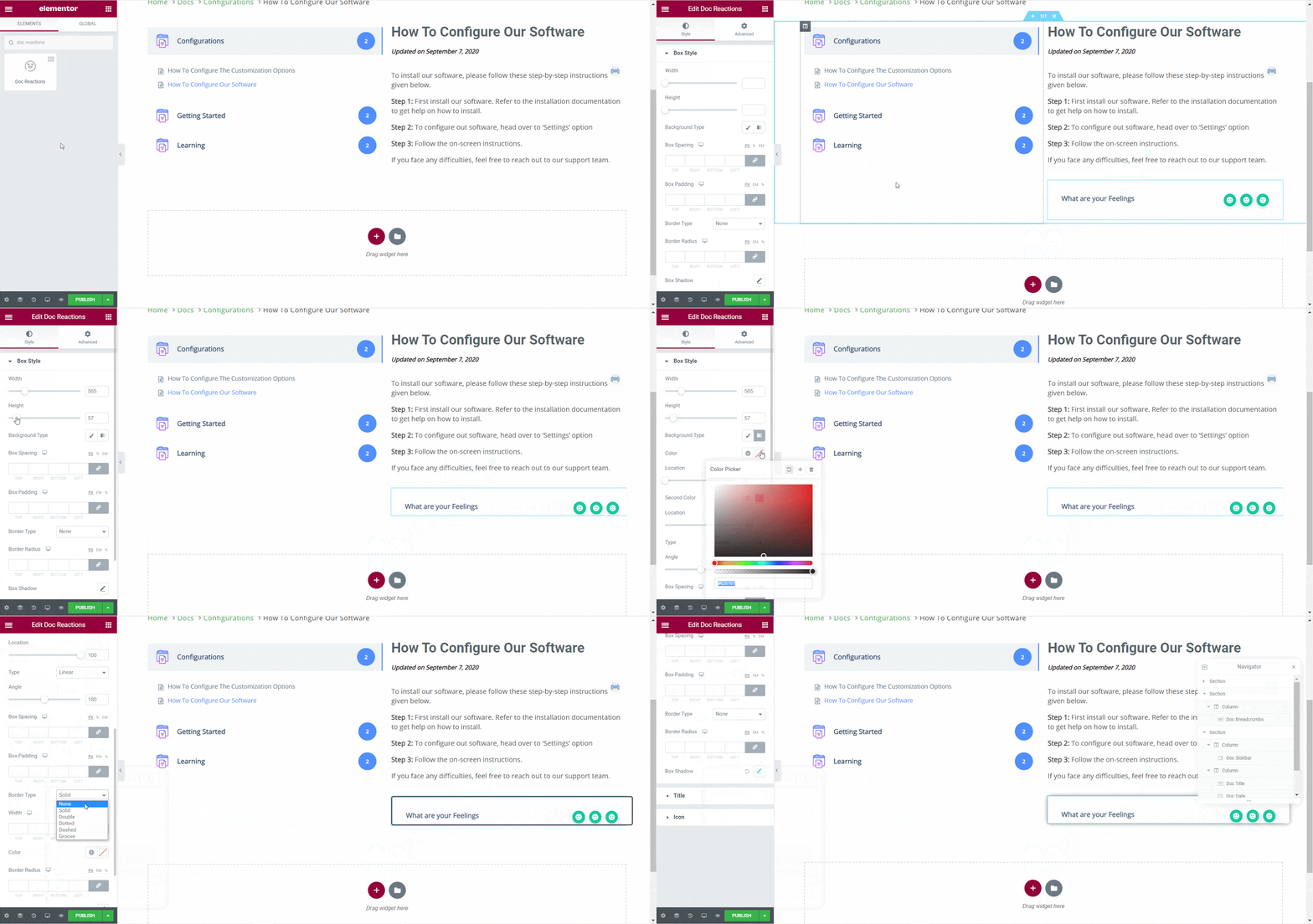
From the ‘Title’ section, you can change the color and typography. Similarly from the ‘Icon’ section, you can change the size of the icons, the area where the icons will be displayed, background color and the color of your icons.
Doc Share #
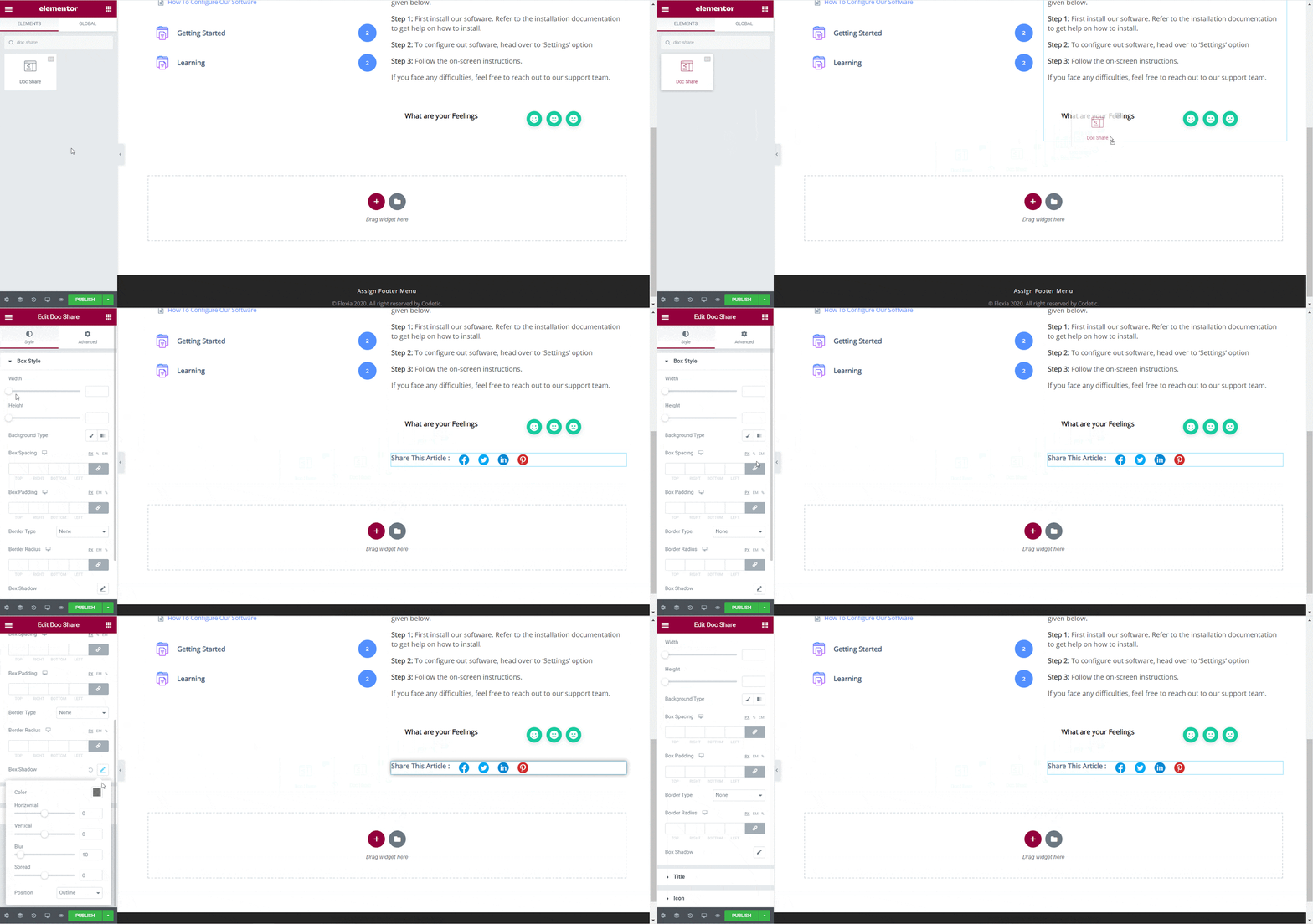
Doc Share element lets you enable social sharing for your documentation. With this element, site visitors can share your documentation on different social media platforms. Simply drag and drop the element anywhere in your Single Doc in Elementor to activate it.
Under the ‘Style’ tab you will see several options to customize the Doc Share element. From the ‘Box Style’ tab you will be able to change the width and height, the background type and color, box spacing and padding, border, shadow and more.
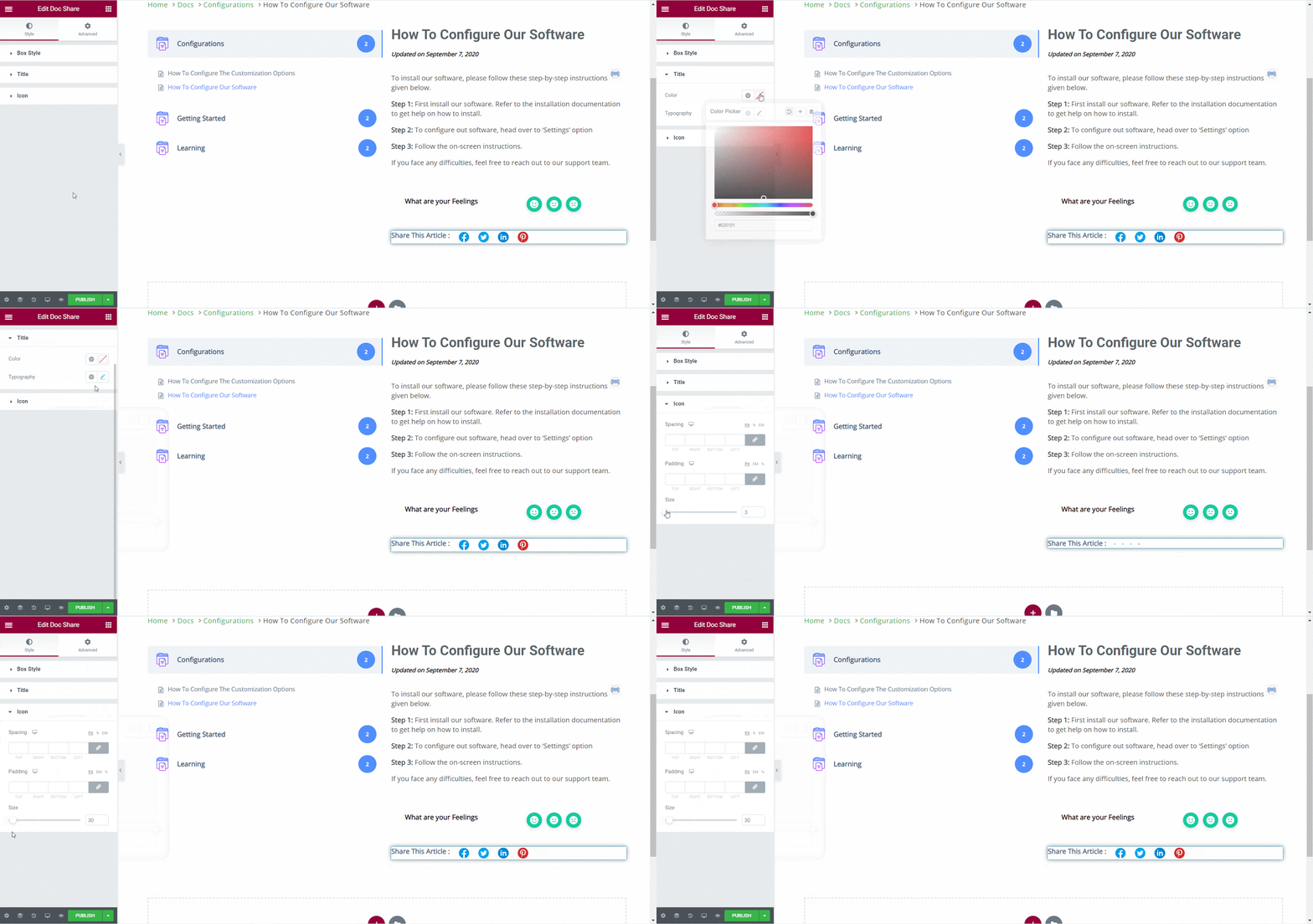
You can also change the color and typography for the title of your Doc Share element, as well as the icon size from the ‘Title’ and ‘Icon’ sections respectively.
Doc Feedback #
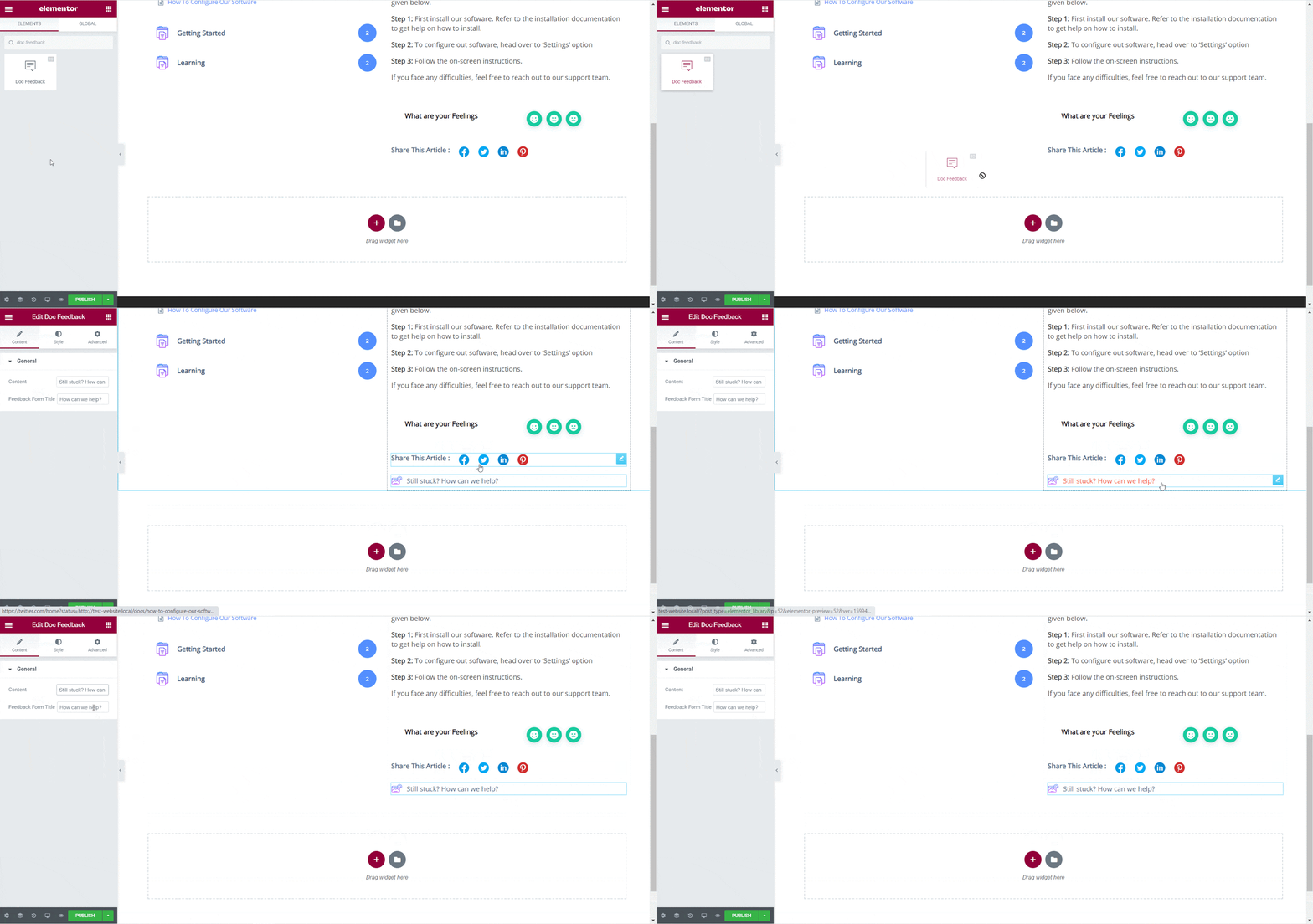
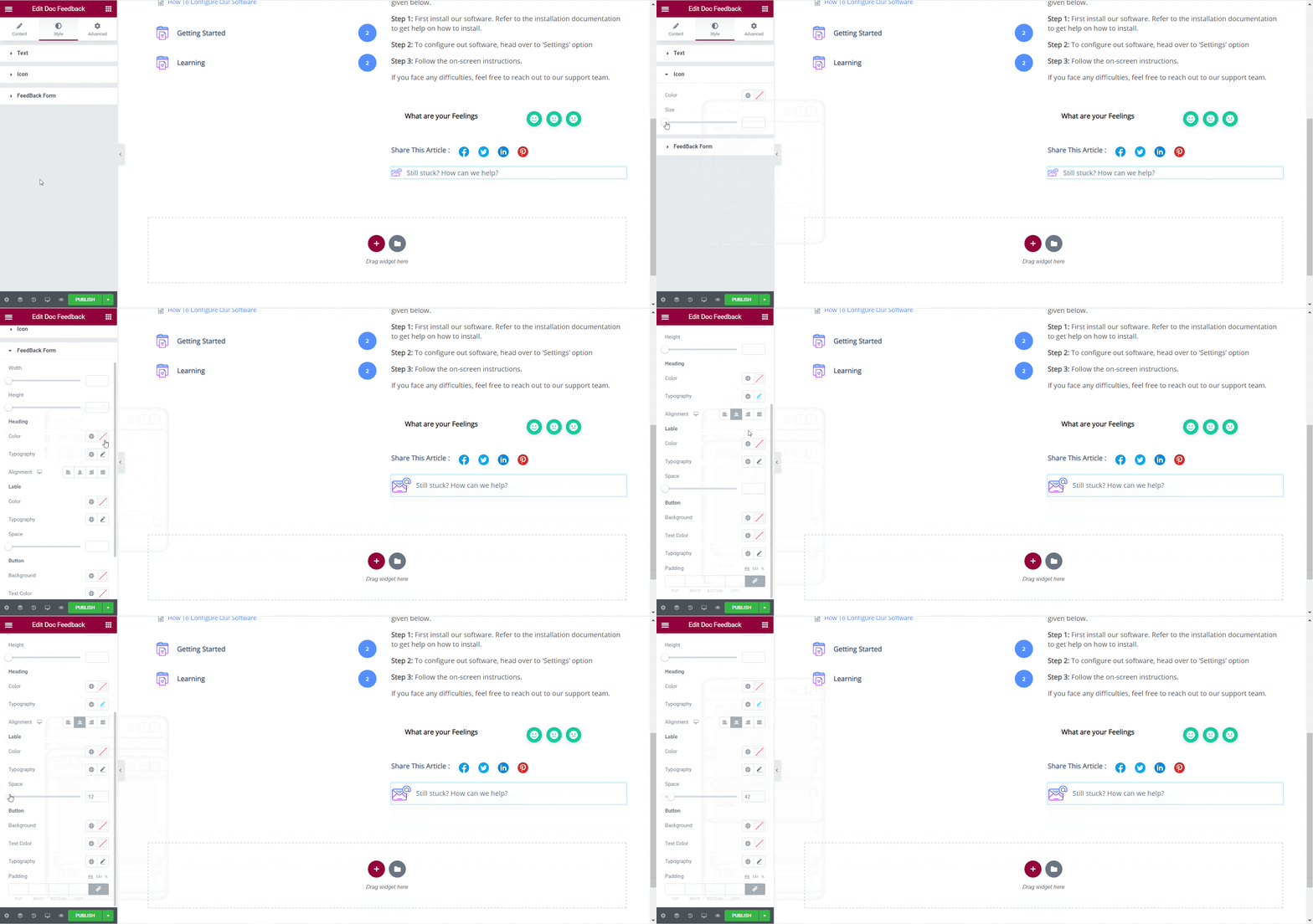
Doc Feedback element lets you add a feedback form for your site visitors which they can use if they want to contact you for further assistance. To activate this element, drag and drop it anywhere on your Single Doc page.
Next, configure the content of your Doc Feedback element from under the ‘Content’ tab. Here, from the ‘General’ section you can add your custom content and feedback form title.
To style your Doc Feedback element, simply head over to the ‘Style’ tab. From the ‘Text’ section, you can change the color and typography of your feedback form. Similarly, you can change the icon color from the ‘Icon’ section.
You can also change the width and height of your feedback form, the alignment, color and typography of the header and the labels, as well as the button from the ‘Feedback Form’ section.
Doc Navigation #
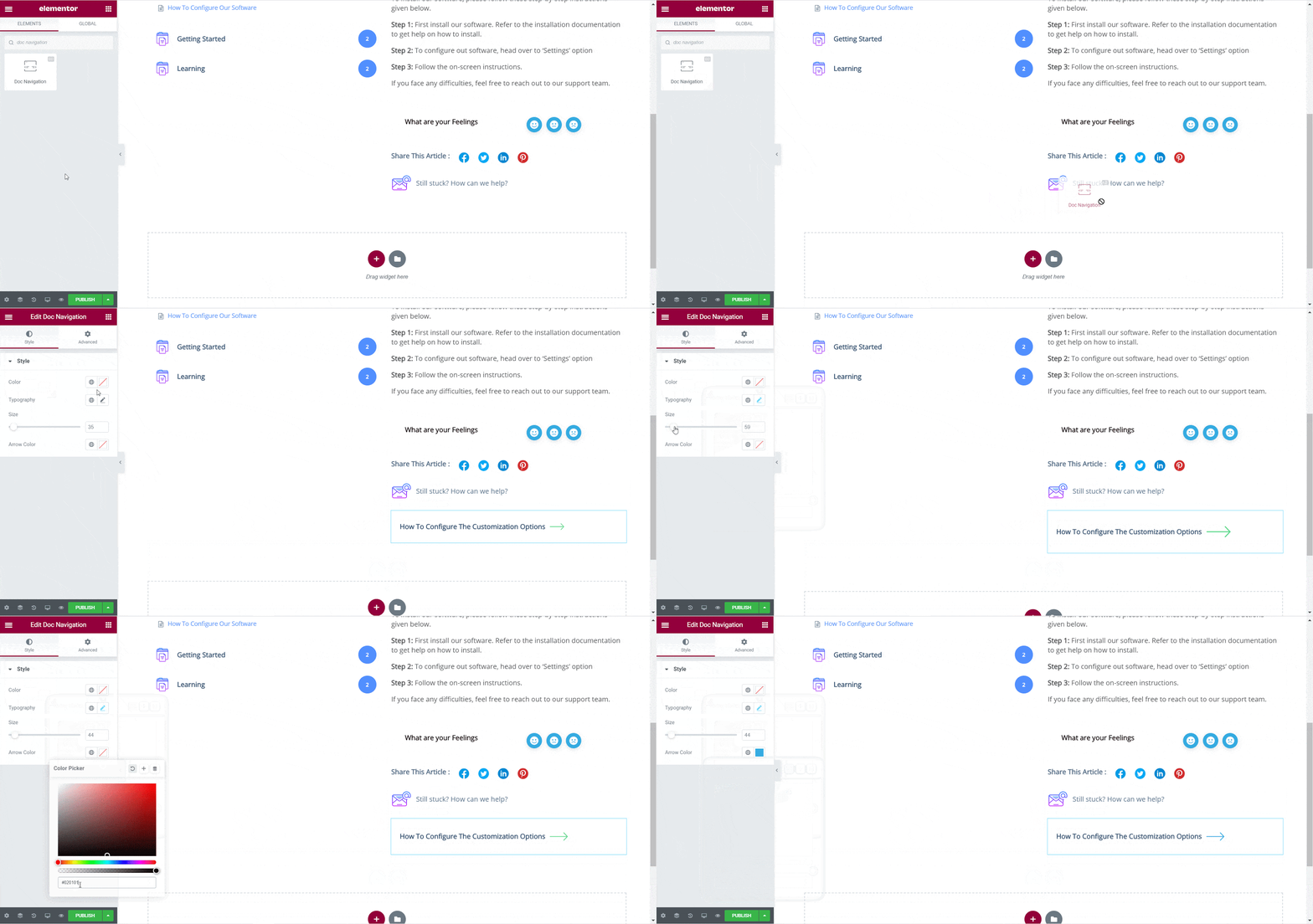
With the Doc Navigation element, you can let site visitors move quickly to the next documentation or go back to the previous documentation. To activate this element, drag and drop it anywhere on your Single Doc in Elementor.
From the ‘Style’ section you can customize the appearance of your Doc Navigation element by changing the color, typography, as well as the size and color of the arrows.
Step 3: Set Conditions & Publish Single Doc Page Template #
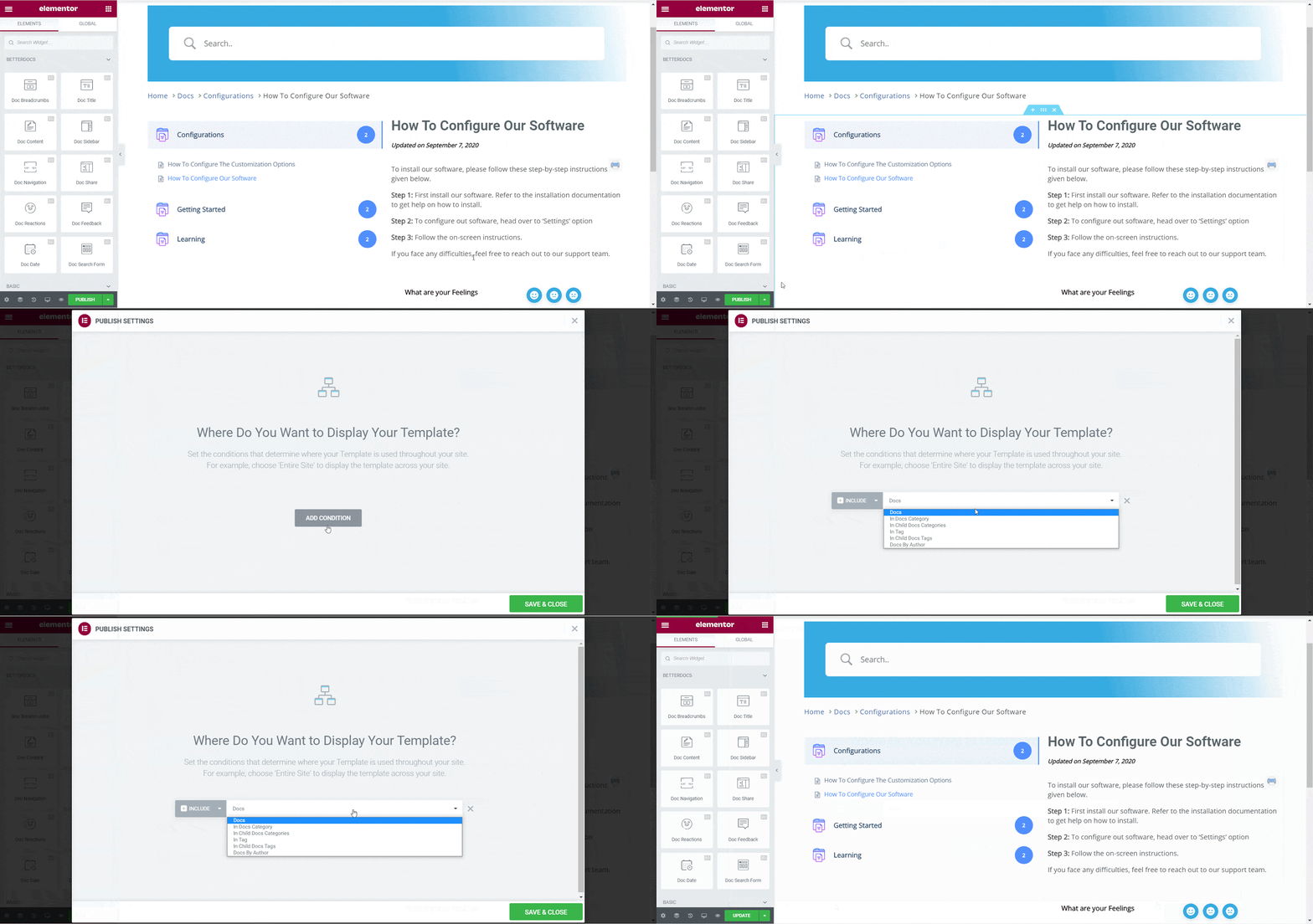
After the above steps have been completed successfully, you can publish your Single Doc page template which you have designed in Elementor. Simply click on the ‘Publish’ button and a popup will appear asking you to set conditions. This step is optional, and it lets you decide the conditions under which your Single Doc page will be available to site visitors.
Next, click on ‘Save & Close’. Your Single Doc page template is now saved in Elementor and can be reused again for other single documentation pages.
Final Outcome #
By following these basic steps you can create your own custom Single Doc in Elementor and even reuse them again instantly.
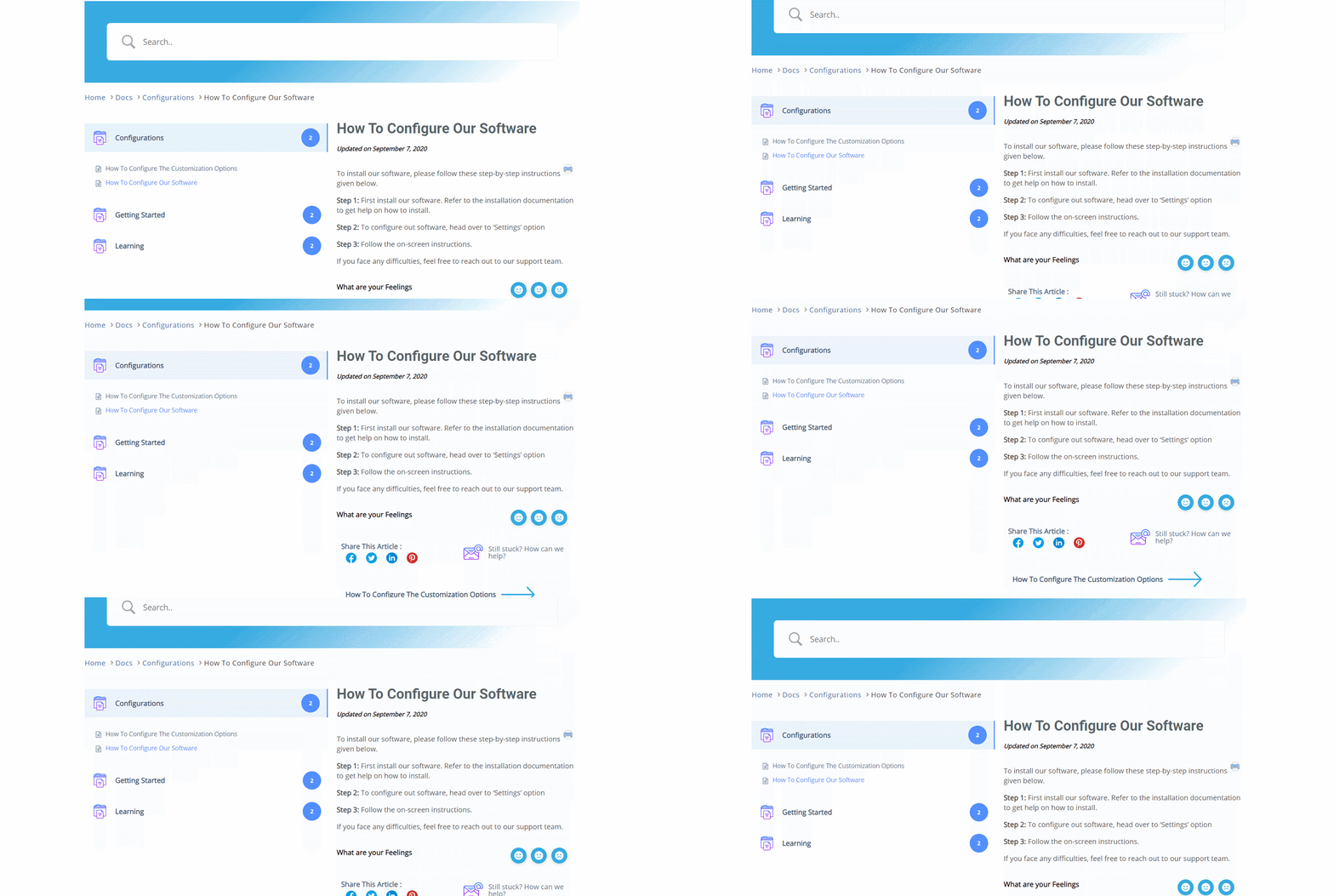
With the help of BetterDocs, this is how you can create stunning single doc templates with Elementor and awe your site readers.
Getting Stuck? Feel free to contact our support team.


