Home
About
Services
Contact

Category 1

17
  • How to Customize the Documentation SideBar?
  • How to Change BreadCrumbs Settings in BetterDocs?
  • Quam corporis qui nobis aliquam.
  • Voluptatem sed ut iure eaque.
  • Id dolorem fugit voluptatem est.
  • Ab aliquid ut tempora labore.
  • Doloribus quam corporis architecto at.
  • Animi culpa non et est.
  • Et et sunt quasi maxime.
  • Omnis fugiat et ut non voluptatum quas.
  • Leo Messi
  • How to Install and Activate BetterDocs
  • How to Activate BetterDocs License Key?
  • How to Sort & Organize Documentation in BetterDocs?
  • What Is BetterDocs and What Does it Do?
  • Where Can I See the Roadmap for BetterDocs?
  • Sample Doc 1

Category 9

12
  • What is Sticky Table of Contents (TOC) & How to enable it in BetterDocs?
  • Ex recusandae omnis dicta veniam.
  • Why Isn’t BetterDocs Showing All the Articles?
  • Is BetterDocs Multi-site Compatible?
  • How to Sort Knowledge Base Categories in BetterDocs?
  • How to Migrate Docs to BetterDocs From an Existing Knowledge Base Plugin?
  • Can I Use BetterDocs with Elementor Page Builder?
  • Does BetterDocs Work with Shortcodes?
  • Can I Disable Feedback Emojis in BetterDocs?
  • Can I Use BetterDocs on Non-WordPress websites?
  • Ut perferendis sint aliquam nisi.
  • How To Configure BetterDocs Table Of Contents In Elementor

Category 2

11
  • At vitae et dolorem qui iure.
  • How to Manage Categories & Tags in BetterDocs?
  • What’s the Difference Between the Free and PRO Version of BetterDocs?
  • How to Use Advanced Drag & Drop Builder to Organize Content in BetterDocs?
  • How to Configure Doc Single Page with BetterDocs
  • Sticky Table of Content Isn’t Working in BetterDocs. What’s Wrong?
  • Does BetterDocs Work with Oxygen Page Builder?
  • Eos dolorem in totam sit.
  • Adipisci fuga accusantium non.
  • Non cupiditate illo facilis aut illum.
  • AI Generated Docs

Category 4

7
  • How to Use Shortcodes to Display Docs in BetterDocs?
  • How to Resolve the “Download failed. Unauthorized” Error When Updating BetterDocs PRO?
  • How To Customize the Documentation Live Search?
  • How to Manage User Roles in BetterDocs?
  • Why Isn’t Table of Content Working in BetterDocs?
  • Et dolores iure ullam natus soluta.
  • Aut et eum ipsum nihil enim.

Category 3

5
  • What are the Requirements to Use BetterDocs?
  • Do I Need Any Additional Plugin to Use BetterDocs?
  • How to Change Slug For Doc Page in BetterDocs?
  • Is BetterDocs SEO Friendly for Your WordPress Website?
  • Ut et mollitia non magni.

Category 8

11
  • Rem suscipit dolorum quisquam ut.
  • Does BetterDocs Work with Any Theme or Page Builder?
  • How to Migrate From Existing Documentation Plugins to BetterDocs?
  • Enim dolore quaerat quia.
  • In optio itaque accusantium qui omnis.
  • How To Configure Docs Page With Elementor?
  • How To Configure Docs Category Archive Page With Elementor?
  • Et nesciunt ipsa dolor.
  • How To Manage Knowledge Base With BetterDocs Grid View?
  • Sint corporis non rerum fugit.
  • Et unde voluptatibus id totam.

ক্যাটাগরি 1

2
  • Neque eum excepturi et odio cupiditate.
  • Leo Messi

Category 5

7
  • How To Configure Documentation Homepage with BetterDocs
  • How To Configure Documentation Homepage & Single Page in BetterDocs
  • How to Manage Multiple Knowledge Base with BetterDocs
  • How to Configure & Style BetterDocs Category Grid In Elementor?
  • How To Manage Documentation With BetterDocs Advanced List View
  • In velit molestias enim id laboriosam.
  • Est dolorem sint sit omnis est.

Category 6

8
  • How to Customize the Documentation Archive Pages?
  • How to Remove Branding of BetterDocs?
  • Quo consequatur aliquam ut aut.
  • How To Configure Single Doc In Elementor
  • How To Configure & Style BetterDocs Category Box In Elementor?
  • How To Manage Internal Knowledge Base With BetterDocs
  • Est delectus ut fuga sed ullam.
  • Sint molestiae optio et velit.

Category 7

6
  • How To Switch Back to Classic / Modern UI in BetterDocs?
  • How to Avoid Sticky Table of Content From Overlapping in BetterDocs?
  • How To Use BetterDocs Ready Blocks In Elementor
  • How To Translate Single Docs Of BetterDocs Using WPML
  • How to Create Multiple Knowledge Bases with Elementor & BetterDocs
  • Autem quasi cum id qui sit consectetur.

Category 1 Sub

2
  • Category 1 Docs Sub
  • Leo Messi
View Categories
  • Home
  • Docs
  • Category 8
  • How To Configure Docs Page With Elementor?

How To Configure Docs Page With Elementor?

3 min read

BetterDocs gives you the complete flexibility to configure and style your docs page with Elementor. You will get access to ready blocks, docs category archive page layouts with lots of free widgets to edit your Docs page with Elementor any way you want and create stunning designs in a few minutes. 

Here’s a step-by-step guide on how to set up the Docs page with Elementor Theme Builder: 

Note: The Elementor Theme Builder is a feature that is only available with Elementor Pro. So to configure your Doc page with Elementor, make sure Elementor Pro is activated and installed on your WordPress dashboard.

Step 1: Create Your Docs Page Template In Elementor #

From your WordPress dashboard and navigate to Templates→ Theme Builder. Click on the ‘Add New’ button, select ‘Doc Archive’ as your template type and then click on the ‘Create Template’ button as shown below. Docs Page With Elementor
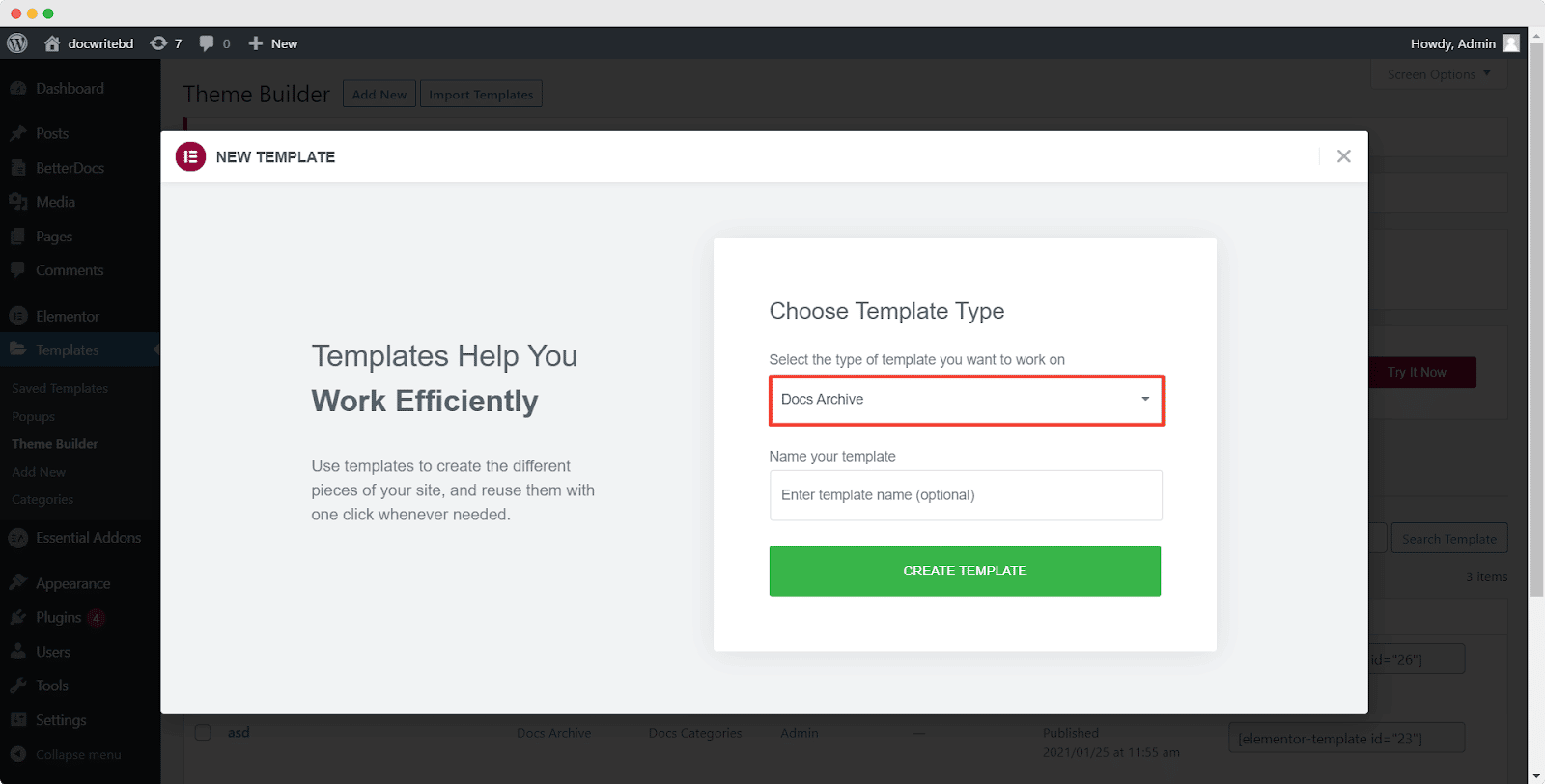
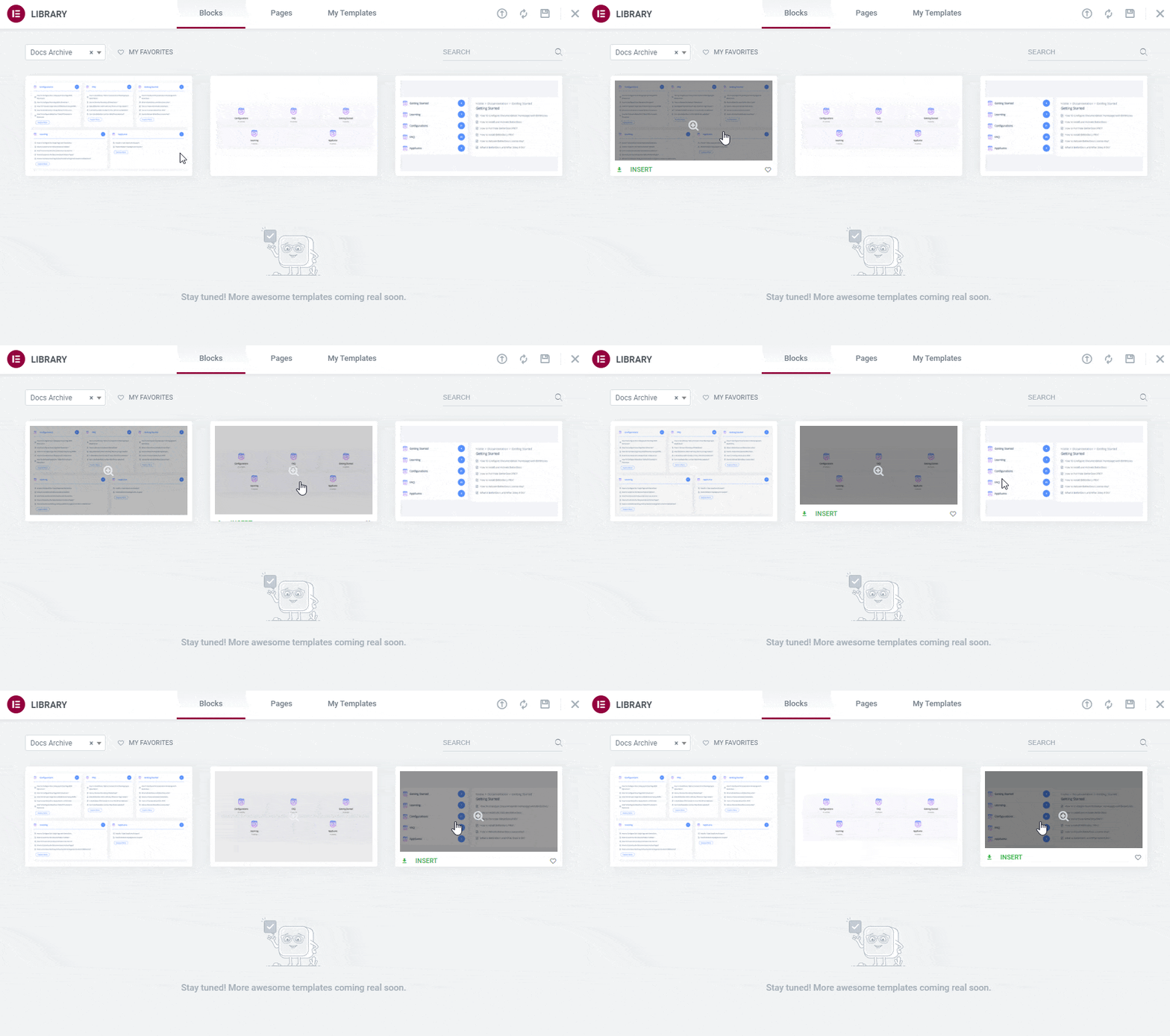
It will come up with a pop-up window that showcases BetterDocs ready blocks for Elementor. You can use these ready blocks to instantly create your docs archive page.
docs page BetterDocs

Step 2: Insert Ready Elementor Layouts for Docs Archive Pages #

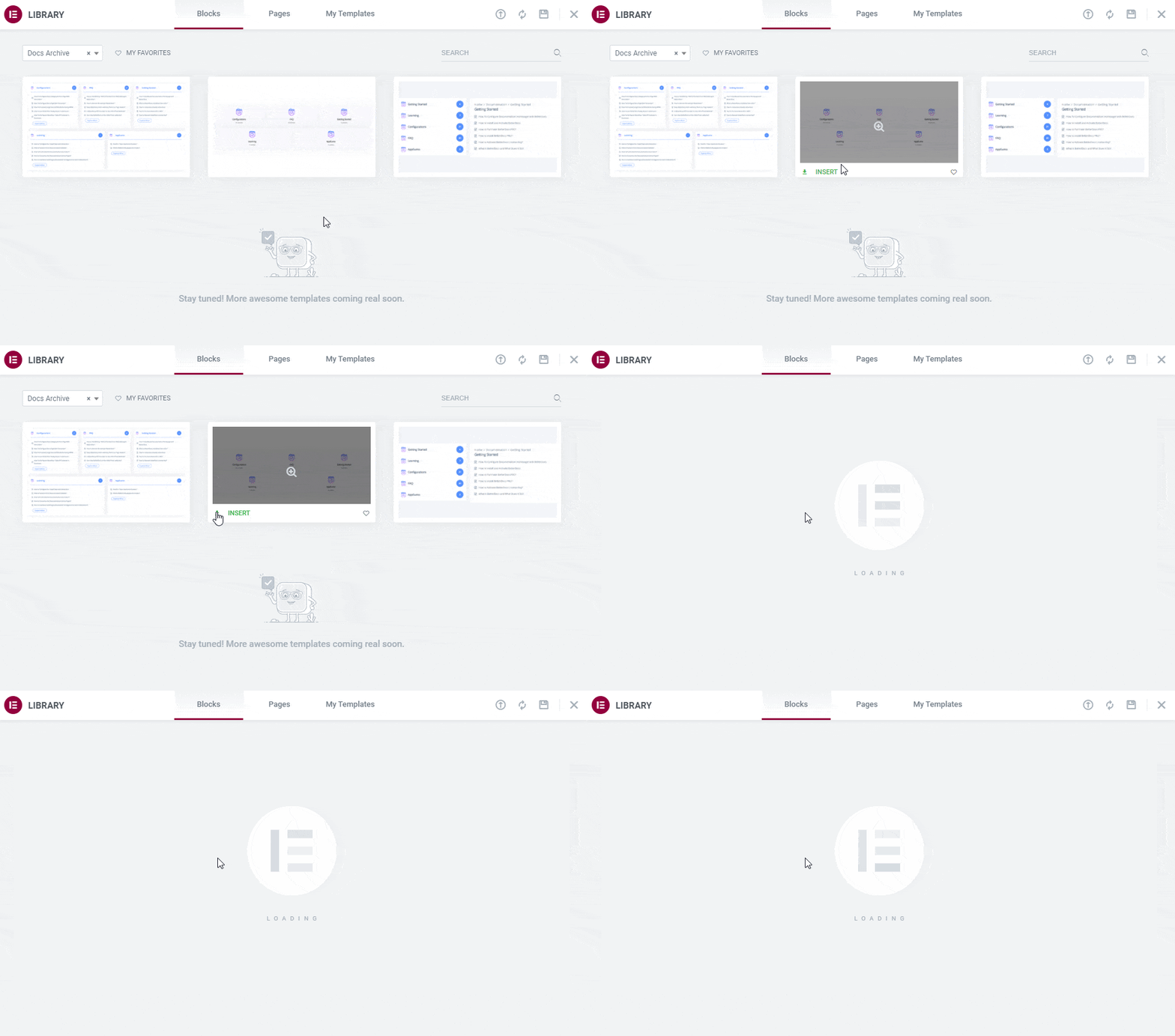
Click the ‘Insert’ button for any of the BetterDocs docs category archive page layouts. It will be displayed on your Elementor Editor just within a few moments.
docs page BetterDocs

Step 3: Configure Single Doc Page In Elementor #

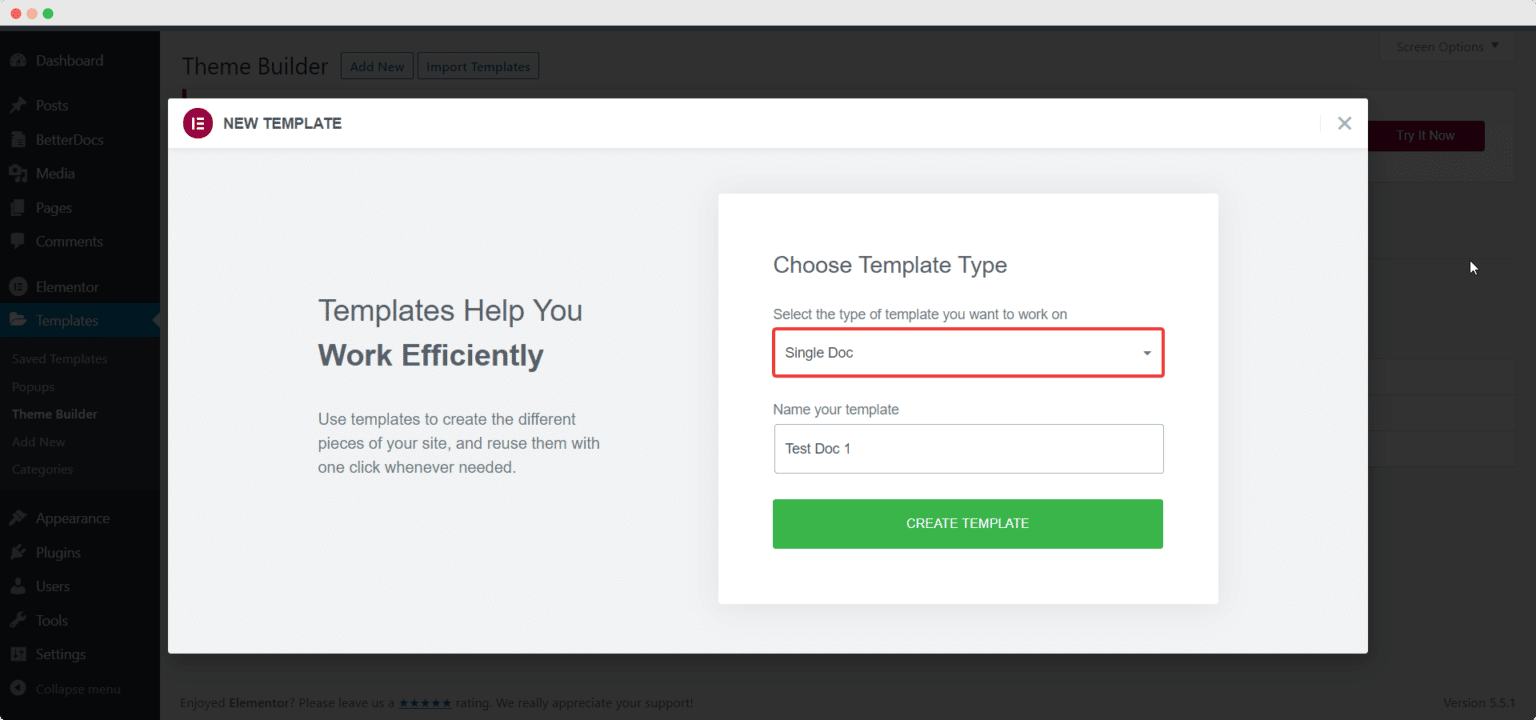
BetterDocs also comes with ready blocks to design single docs in Elementor Editor. If you want to create one, you have to navigate to Templates→ Theme Builder. Click on the ‘Add New’ button, select ‘Single Doc’ as your template type and then click on the ‘Create Template’ button as shown below.
docs page BetterDocs

You will get a popup window that displays all the ready blocks to create your single docs page in Elementor Editor.docs page BetterDocs
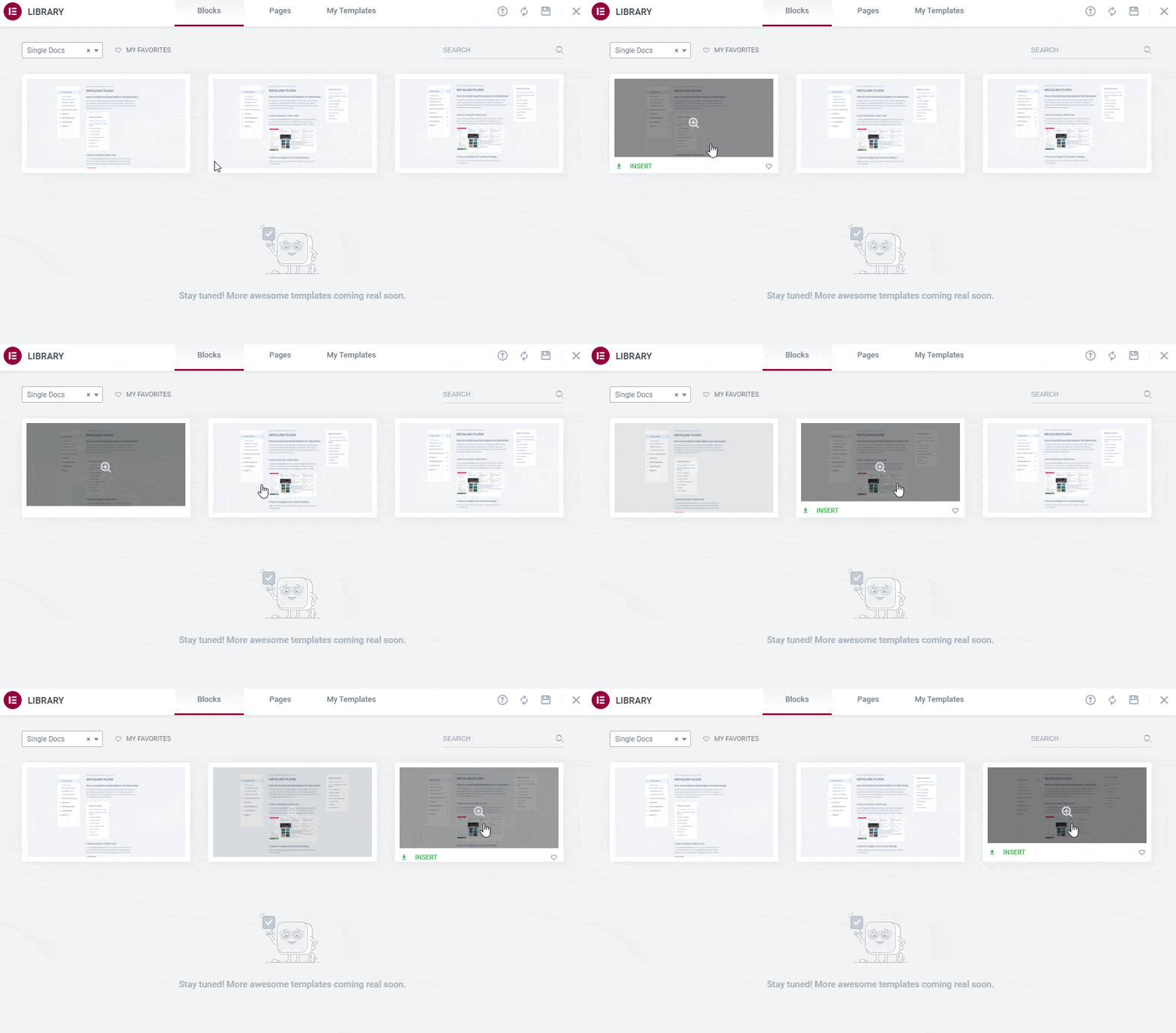
Step 4: Insert BetterDocs Ready Blocks For Single Doc  #

Next, you have to hit the ‘Insert’ button on any of the ready designs and it will show up within a few minutes on your Elementor Editor. Now you are completely free to make any changes according to your need.  
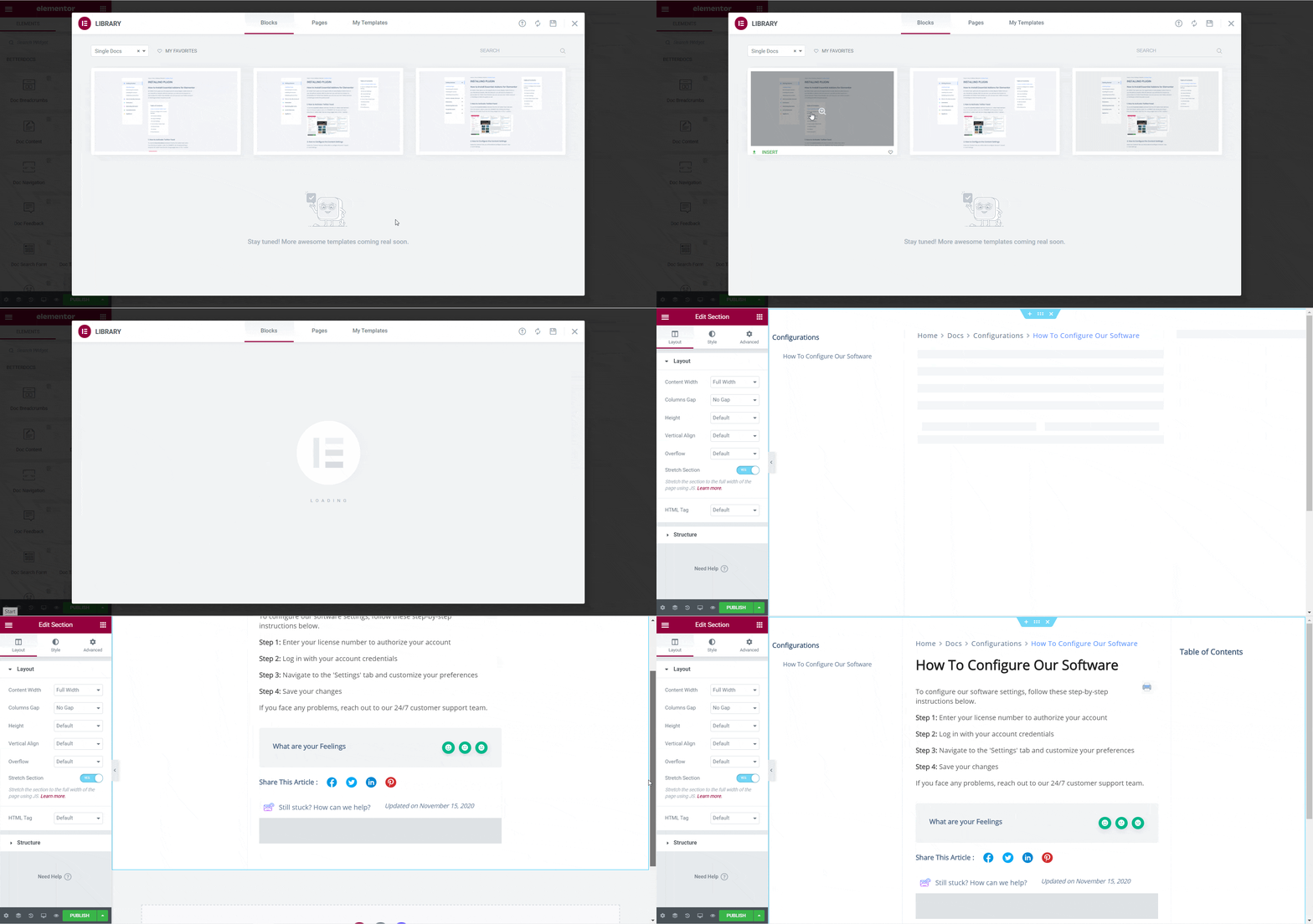
docs page BetterDocs

Or if you want, you can also customize your docs category archive page from scratch by configuring different elements, 

Step 5: Customize Your Docs Page With Elementor #

You just have to choose a single page archive or docs single page from your Elementor theme builder, and then you will be redirected to the Elementor Editor.

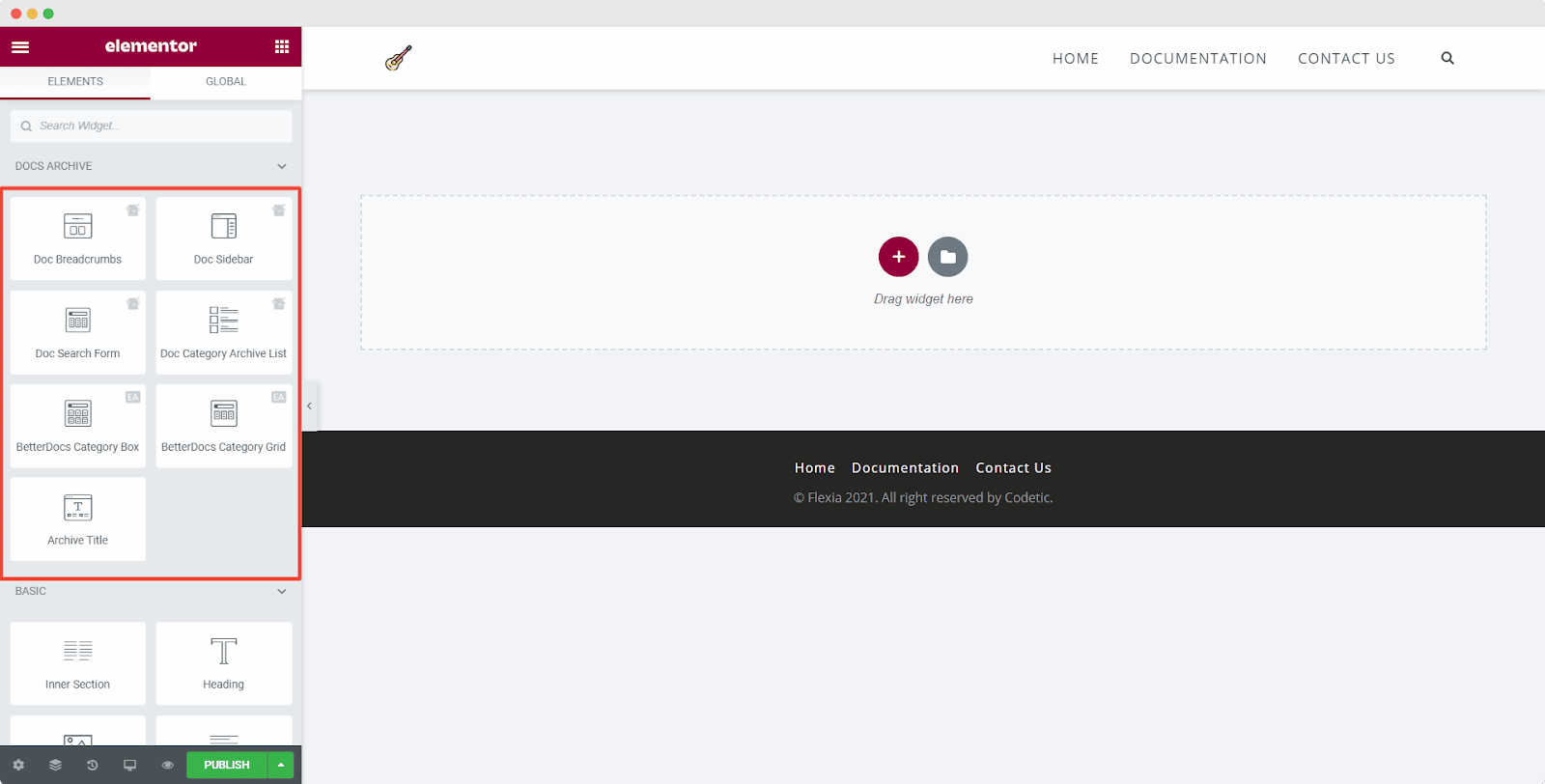
From the Elementor editor’s ELEMENTS tab, you will find BetterDocs elements to design your Docs page template. Drag and drop these widgets from the widget panel on the page as you need.Docs Page With Elementor
Doc Search Form #

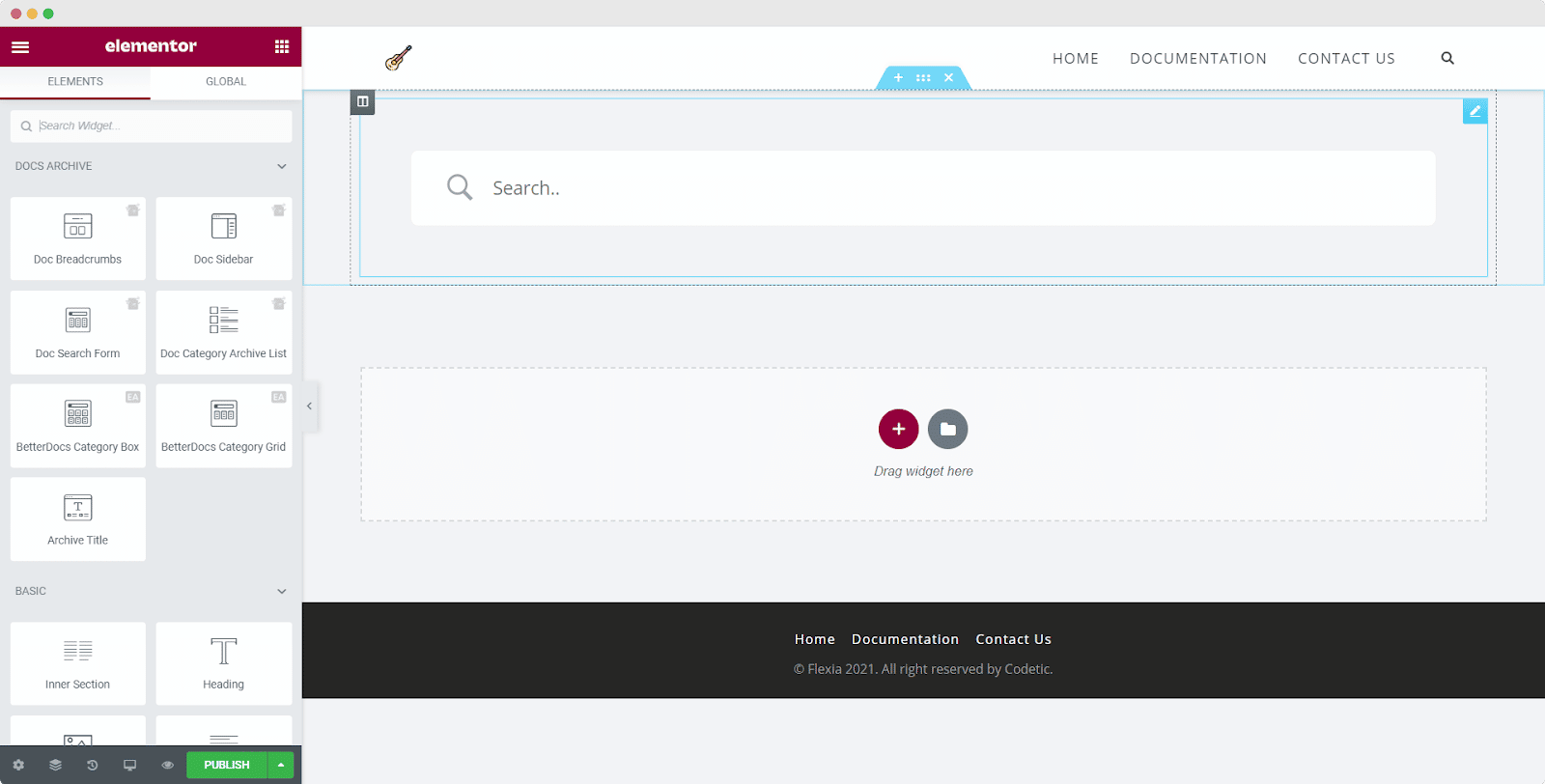
The Doc Search Form element allows you to add a live search bar to your Docs page. Drag and drop this element wherever you’d like on your page.
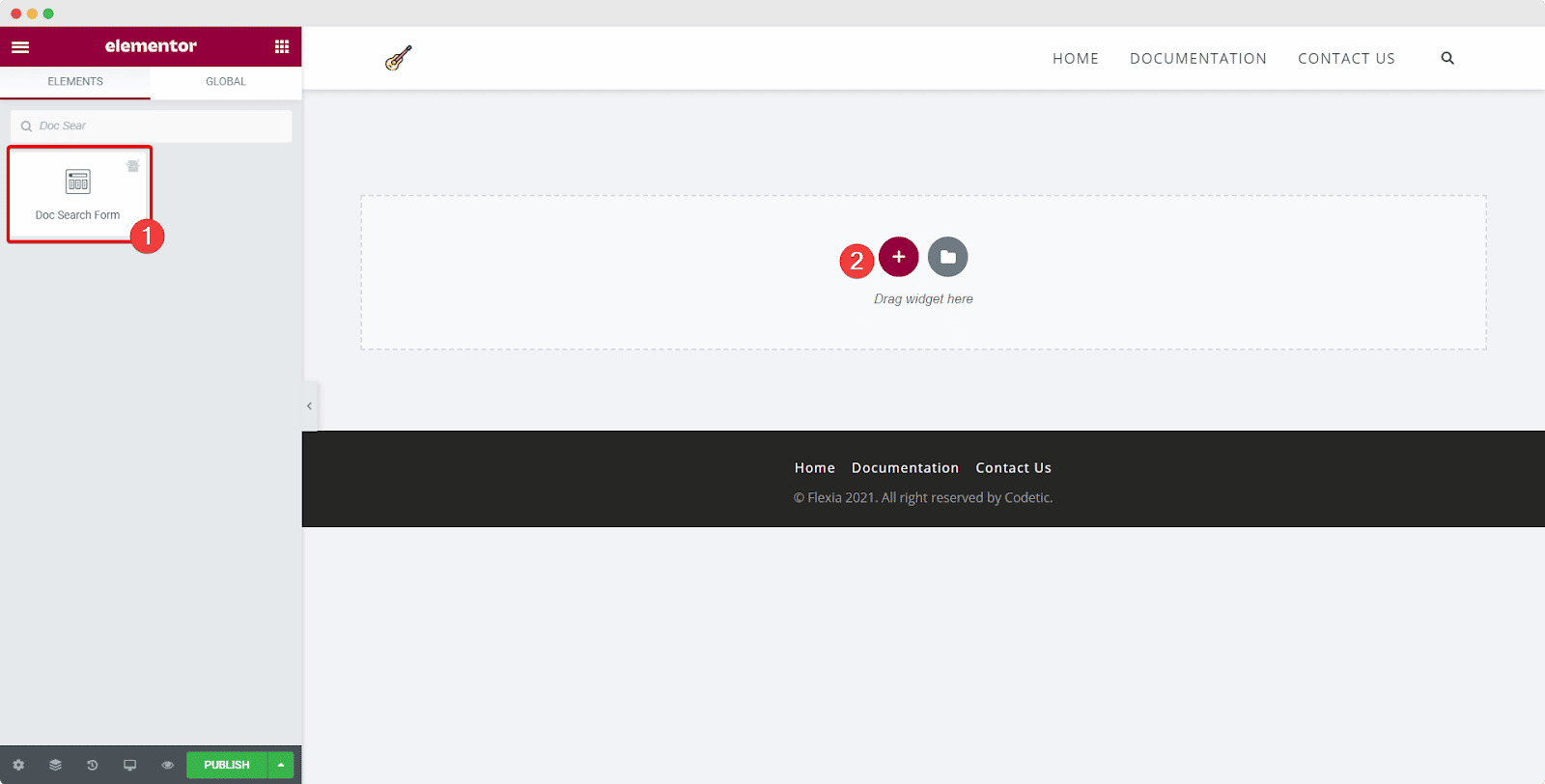
Docs Page With Elementor

The element is displayed on your page by default as shown below.
Docs Page With Elementor

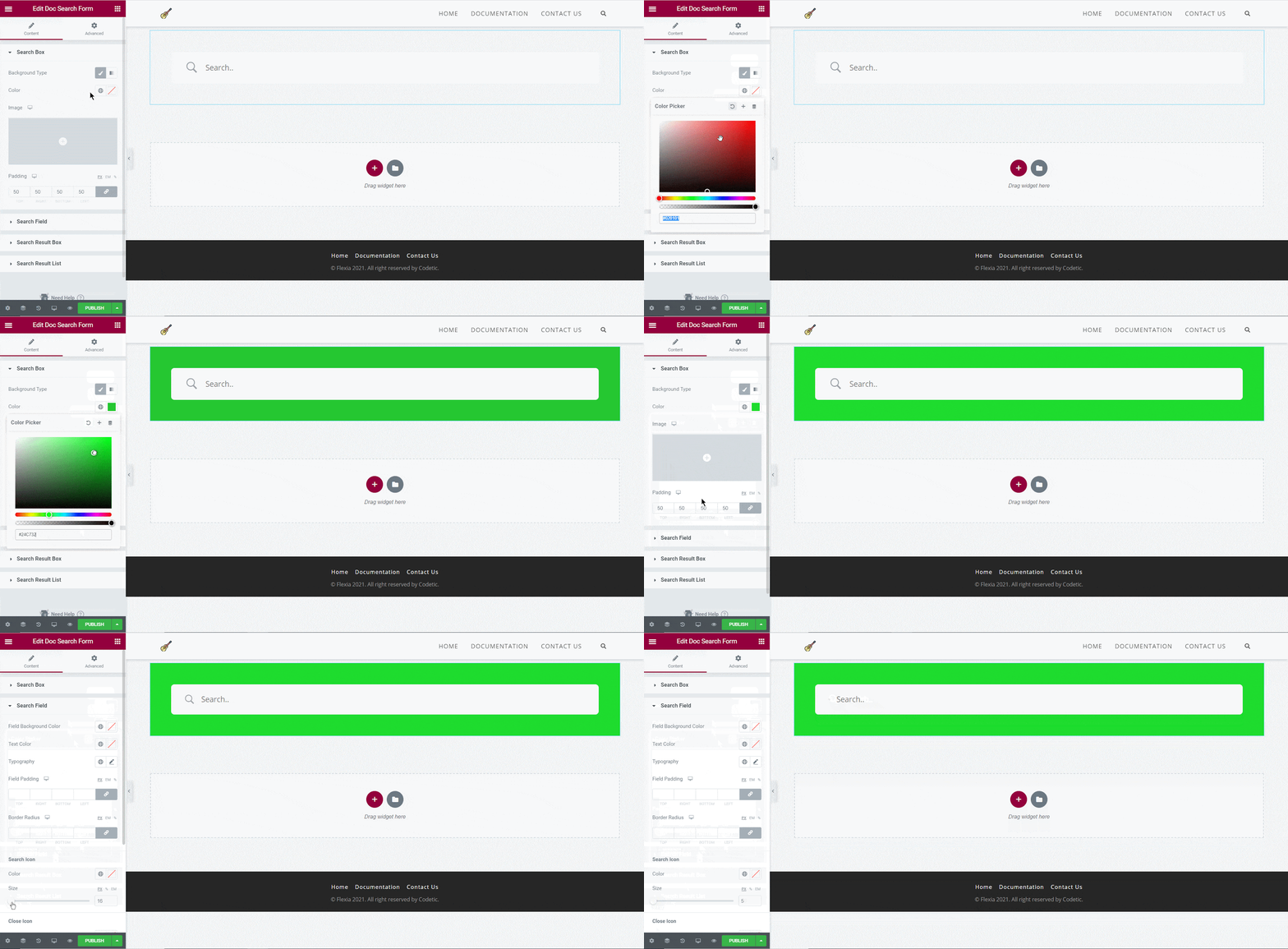
You can customize your Doc Search Form from the ‘Content’ tab. Under the ‘Search Box’ section you will see options for changing the background type and color. You can add images, solid colors, or gradients for your background.

It is also possible to customize the ‘Search Field’ section’s coloring, typography, padding, icons, and so on.
Docs Page With Elementor

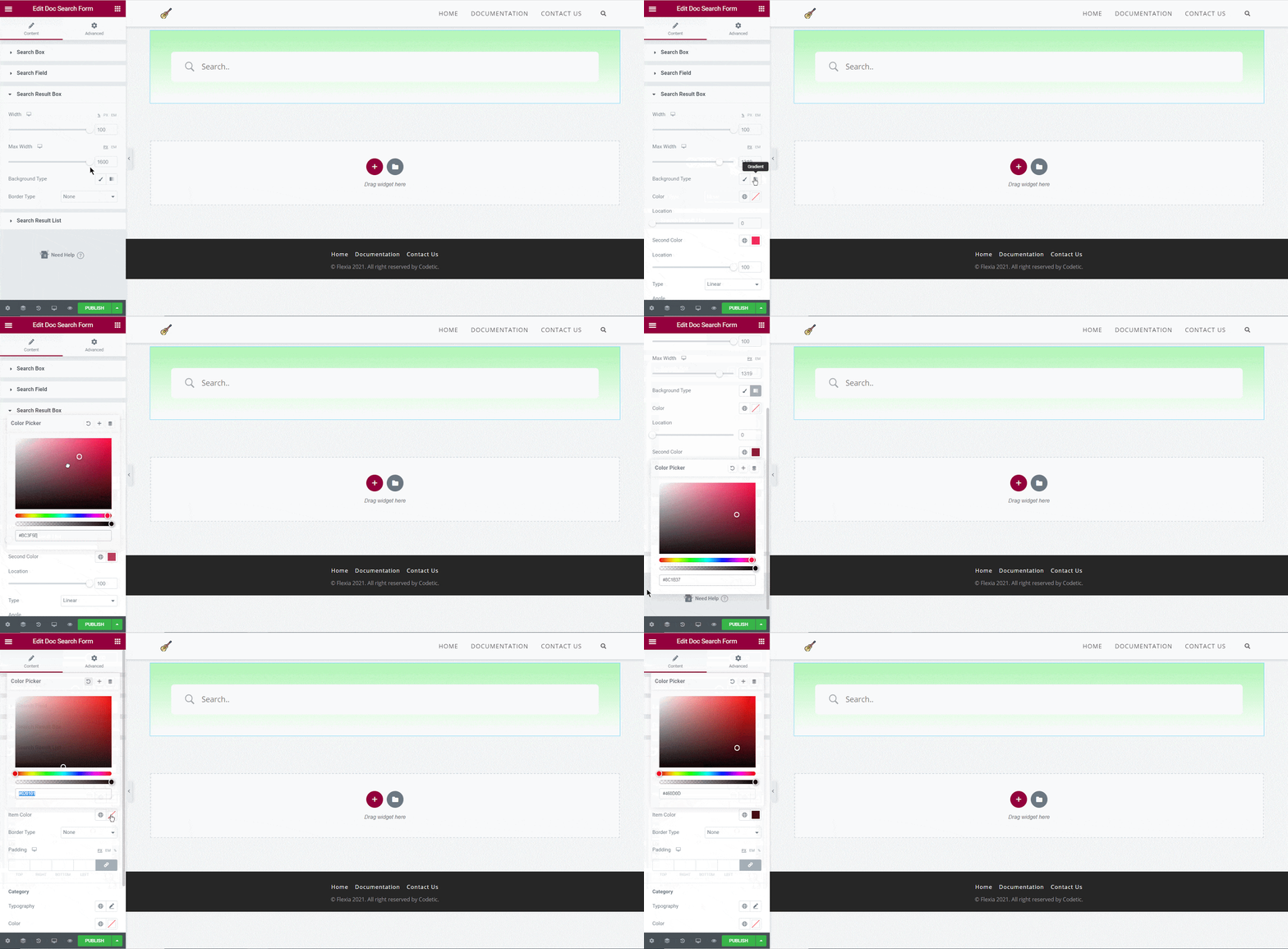
You can change the width, background type, and border for your results box from the ‘Search Result Box’ section. With the ‘Search Result List’ section, you can also change the typography and colors used for your search results.
Docs Page With Elementor

BetterDocs Category Box #

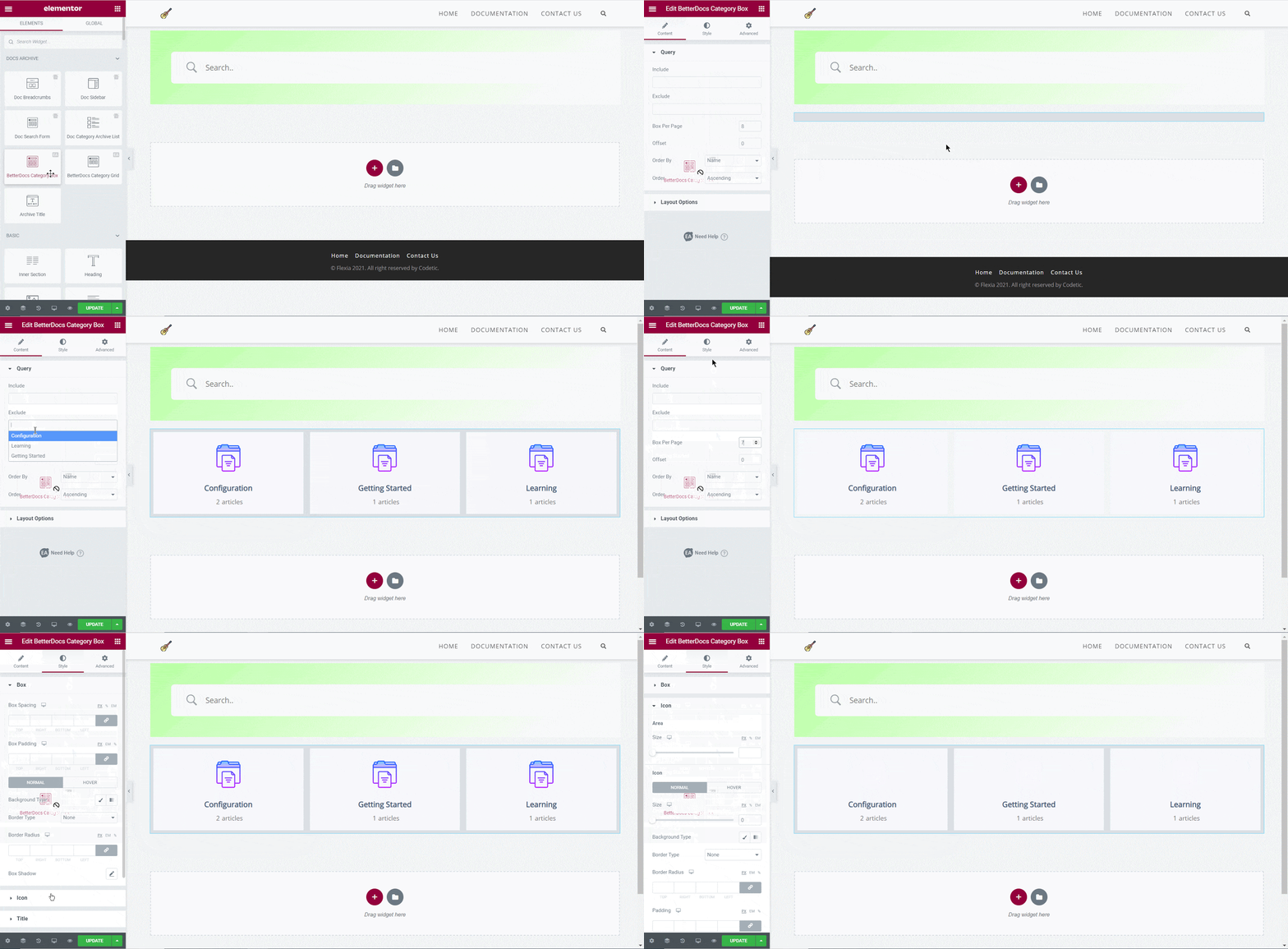
BetterDocs Category Box helps you to showcase all your documentation categories together in box format. From ‘Content’ tab, you can include and exclude categories from displaying on the Docs page. Also, you can customize the layout option, icons, title, and many more. 

For more information on how to configure BetterDocs Category Box, check out this documentation.
Docs Page With Elementor

BetterDocs Category Grid  #

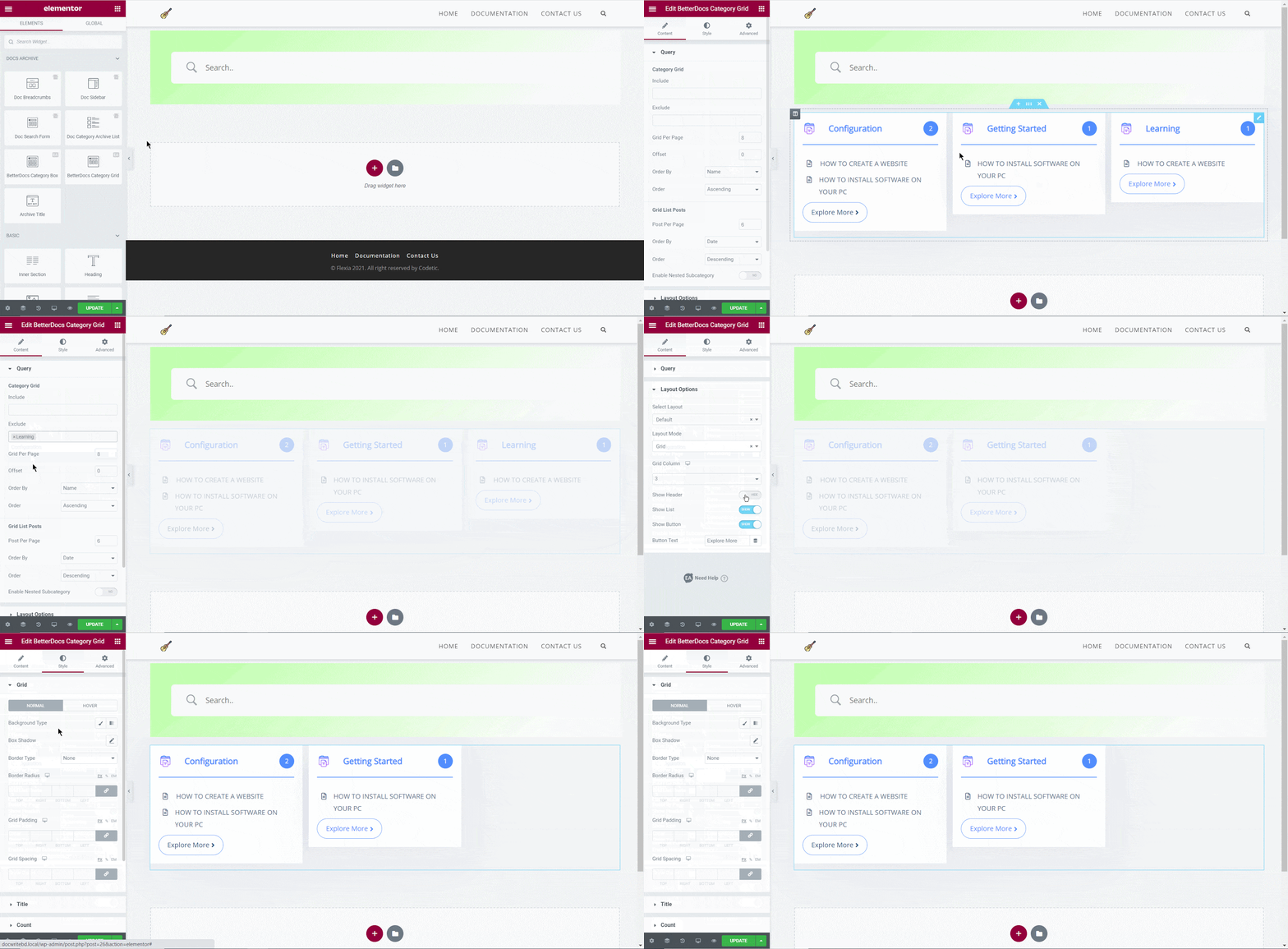
BetterDocs Category Grid allows you to display your documentation categories in an amazing grid format. It allows you to choose which docs category to include and which to exclude. Besides, you can customize the layout option, icons, title, and many more.

To learn more about how to configure BetterDocs Category Grid on your Docs page, visit this documentation.
Docs Page With Elementor

Step 3: Set Conditions & Publish Docs Page Template  #

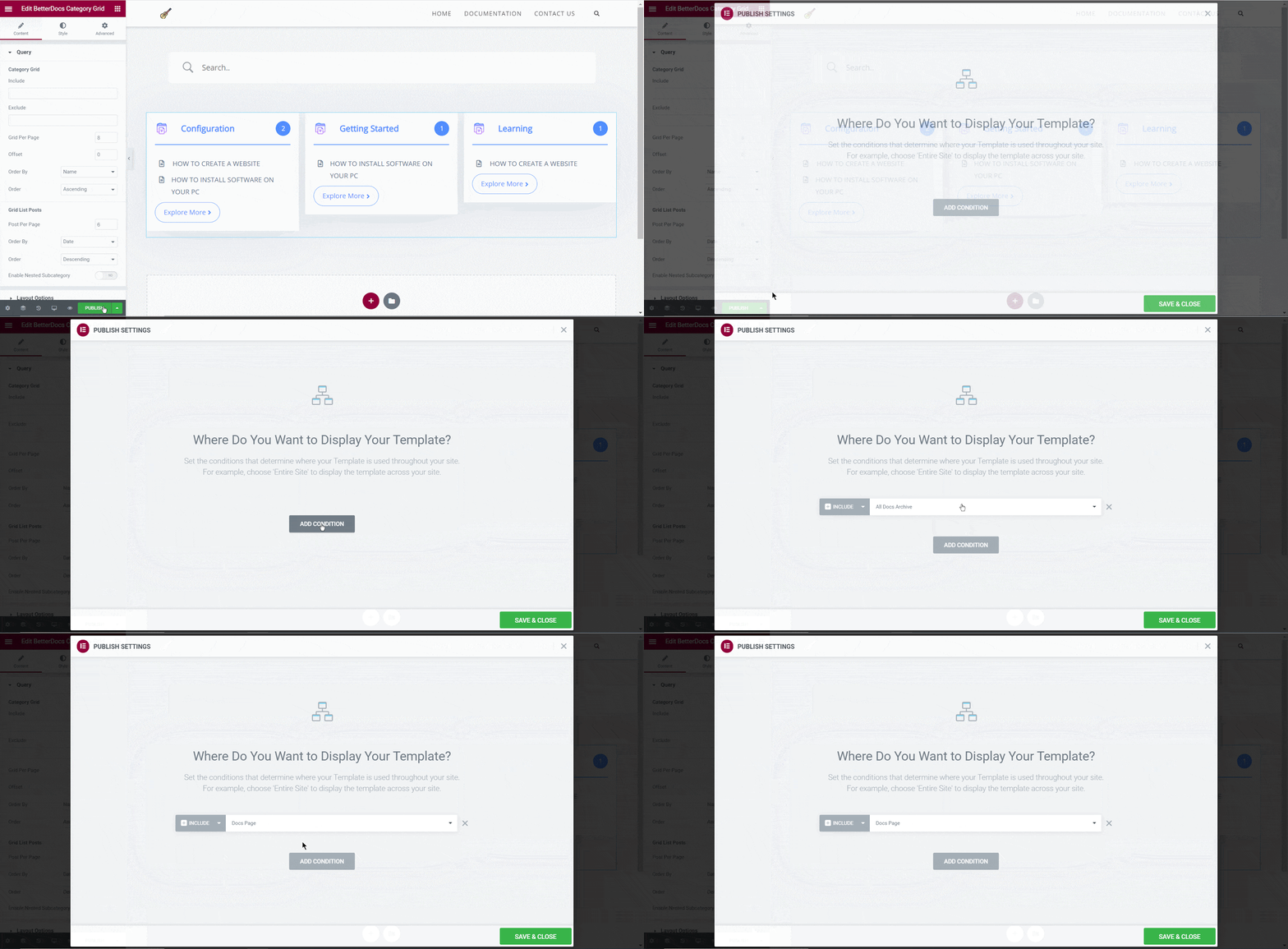
You can choose either BetterDocs Category Grid or BetterDocs Category Box to design your Docs page with Elementor. After making all the changes, click on the ‘Publish’ button. You will see a popup asking you to set conditions. Pick ‘Doc page’ option and click on ‘Save & Close’ and your Docs page will be published.
Docs Page With Elementor

Final Outcome #

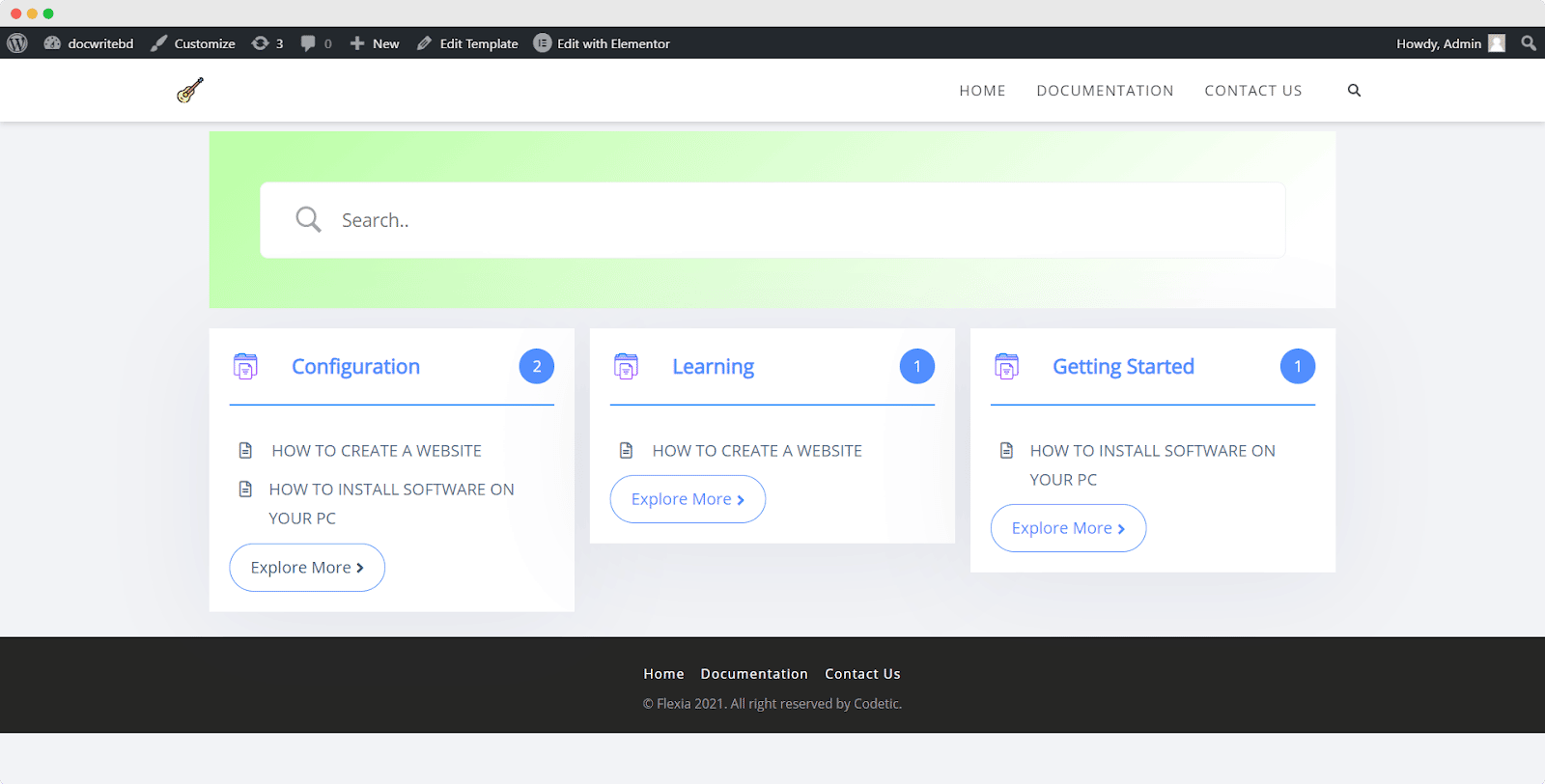
After following these simple steps, you can create your own custom Docs page with Elementor and change the designs as per your preference.
Docs Page With Elementor

Using BetterDocs, this is how you can create a compelling Docs page with Elementor Theme Builder effortlessly.

If you face any difficulties, feel free to contact our support team.

Updated on January 27, 2021

What are your Feelings

  • Happy
  • Normal
  • Sad

Share This Article :

  • Facebook
  • X
  • LinkedIn
  • Pinterest
In optio itaque accusantium qui omnis.How To Configure Docs Category Archive Page With Elementor?

Powered by BetterDocs

Table of Contents
  • Step 1: Create Your Docs Page Template In Elementor
  • Step 2: Insert Ready Elementor Layouts for Docs Archive Pages
  • Step 3: Configure Single Doc Page In Elementor
  • Step 4: Insert BetterDocs Ready Blocks For Single Doc 
  • Step 5: Customize Your Docs Page With Elementor
    • Doc Search Form
    • BetterDocs Category Box
    • BetterDocs Category Grid 
  • Step 3: Set Conditions & Publish Docs Page Template 
  • Final Outcome

Subscribe To Our Newsletter

Subscription Form
  • Contact

  • Services

  • FAQ

  • Privacy & Policy